

How it relates to Event Feed
Integration Status and the Event Feed work hand-in-hand:- Integration Status - high-level health per component. Use it to answer “is everything working?”
- Event Feed - individual event log with per-field validation. Use it to answer “why did this specific event fail?”
Page header
The page header gives you an at-a-glance summary of your integration before you scroll into the individual component cards.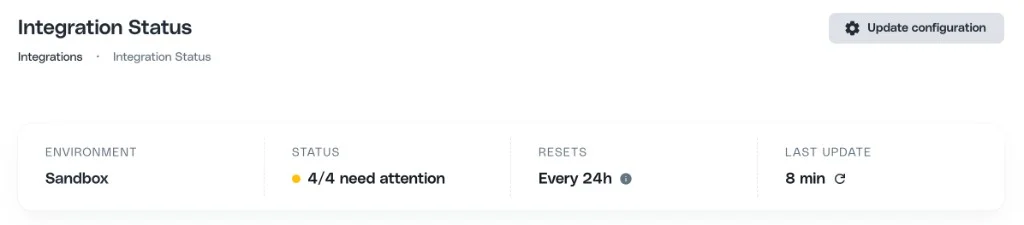
Status definitions
Every component reports one of three statuses, calculated against the health window shown in the page header (1 hour in production, 24 hours in sandbox):
Statuses can move in any direction - a component can go from Connected to Warnings if recent events have errors, or to Not connected if you change the source.
Connected with warnings is not the same as Not connected. Connected with warnings means events are arriving and the integration is fundamentally wired up - the fix is usually about the referral code (
ucc) or field validation, not about setting up or changing a source. Always match troubleshooting to the already-configured source shown on the card.Status and warning reference
This is the authoritative mapping of what each Signups and Purchases tracking state means and what to do about it. Whatever the state, troubleshoot the source that is already configured - do not switch sources or set up a webhook for a different source. If you think a different source fits your setup, confirm it with Cello first.Signups tracking
Purchases tracking
Purchases have no Auto Attribution path and no recent-activity warning - a configured purchase source that has never received events shows Not connected until the first event arrives.The four components
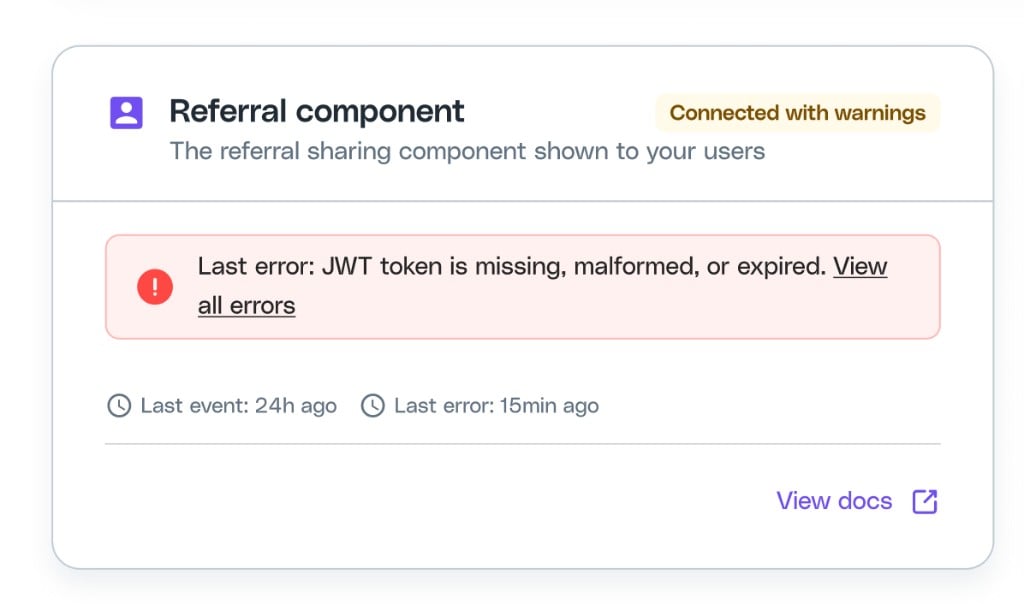
1. Referral component
Tracksbooted events from cello.js - the script that renders the Referral Component widget in your app.
Widget errors reference
The error messages shown in the portal are deliberately written to be human-readable, and they’re worded differently from what you’ll see in the browser Console or in the Network tab. Use this table to map between the portal wording and the underlying error.Token issue (InvalidJwt)
The portal collapses several underlying token failures into a single message: “JWT token is missing, malformed, or expired”. The actual underlying cause is one of:
token verification failed-decodeWidgetTokencould not verify the signature.token schema not validated- the token payload is invalid (e.g. wrong shape).token missing iat field- the token has noiatclaim andallowMissingTokenIat = false.token creation time in future- theiatis in the future.No referrer found for productUserId- the token references aproductUserIdthat doesn’t exist.No auth token found- no token was sent with the boot request.
productUserId, and has a current iat timestamp. See User Authentication for details.
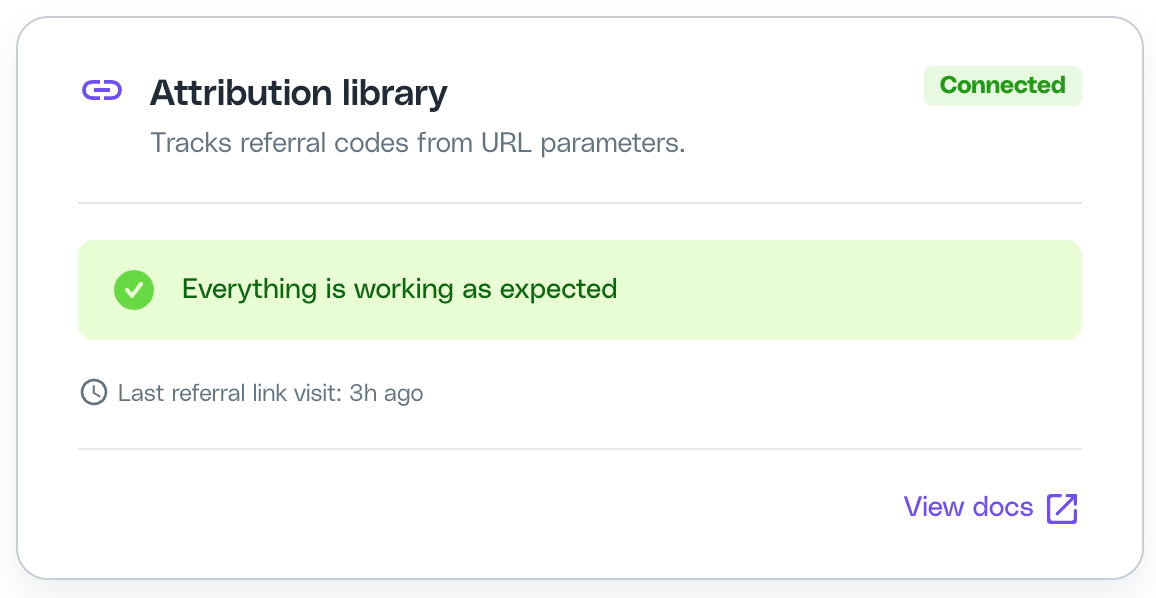
2. Attribution library
Tracks referral link visits picked up bycello-attribution.js - the script you embed on your landing pages to capture referral codes.
3. Signups tracking
Tracks signup events from your configured source. The expected event type depends on which source you use:Confirm the signup source with Cello before setting it - do not pick one from this table alone. The key rule for Stripe/Chargebee vs Cello API: Stripe/Chargebee can only be the signup source if your payment-provider customer is created at signup. IF the customer is created at first purchase, use the Cello API to send
new-signup at the real signup moment, or follow the purchase-first, signup-later pattern instead. See Changing the configured source for all the factors.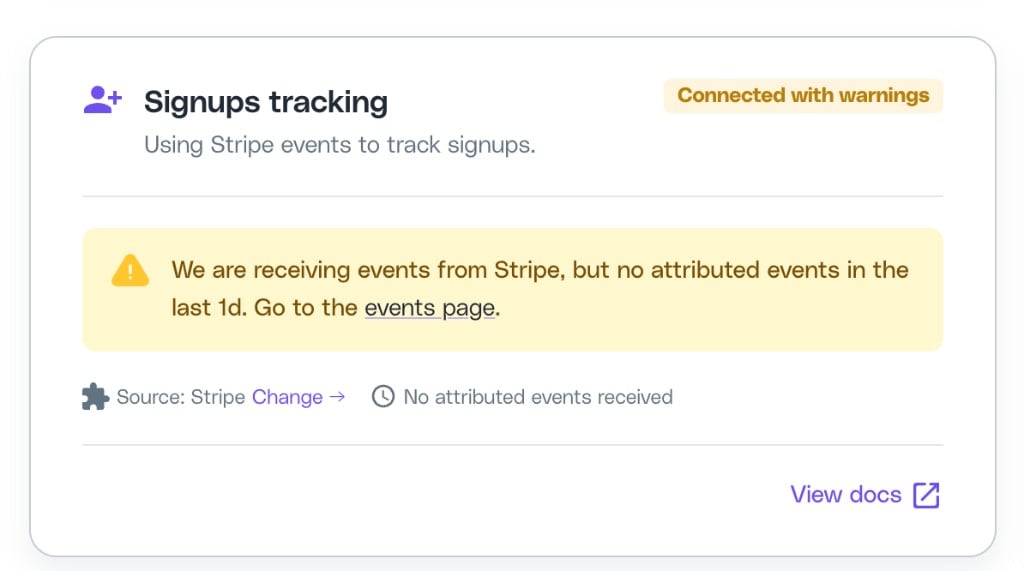
Common alerts
These are specific cases of the statuses above. The per-source Not connected rows are the “source configured, but no events received yet” case - the fix is to confirm that source is actually sending, never to switch to a different source.4. Purchases tracking
Tracks purchase events from your configured source: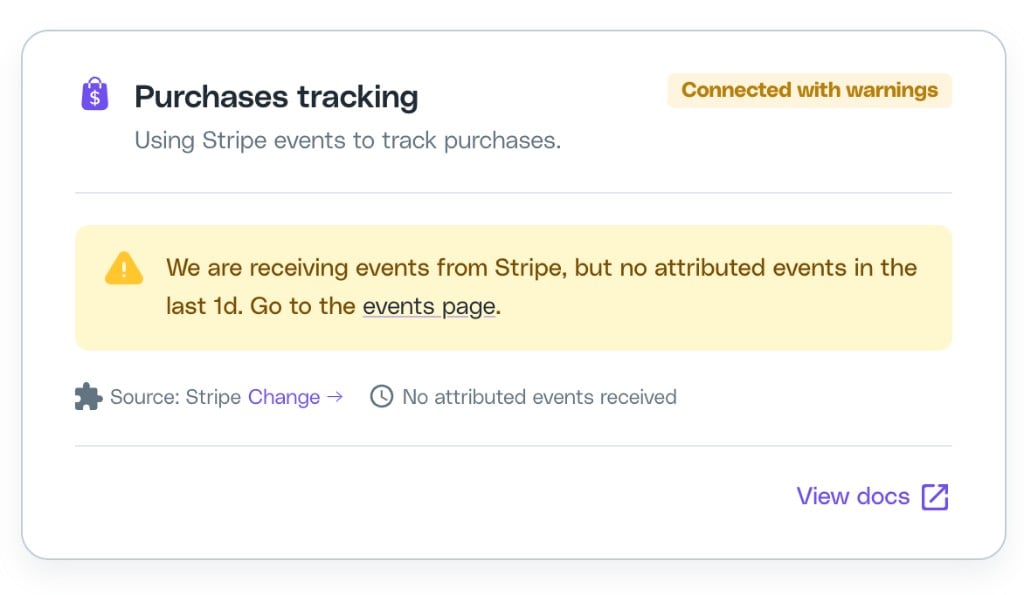
Common alerts
These are specific cases of the statuses above. Purchases have no Auto Attribution path and no recent-activity warning. The per-source Not connected rows are the “source configured, but no events received yet” case - confirm that source is sending, never switch to a different source.Changing the configured source (confirm with Cello first)
Use the Update configuration modal to choose where Cello should track signups and purchases from. You can open it from the Update configuration button in the page header, or from the link inside the Signups tracking and Purchases tracking cards.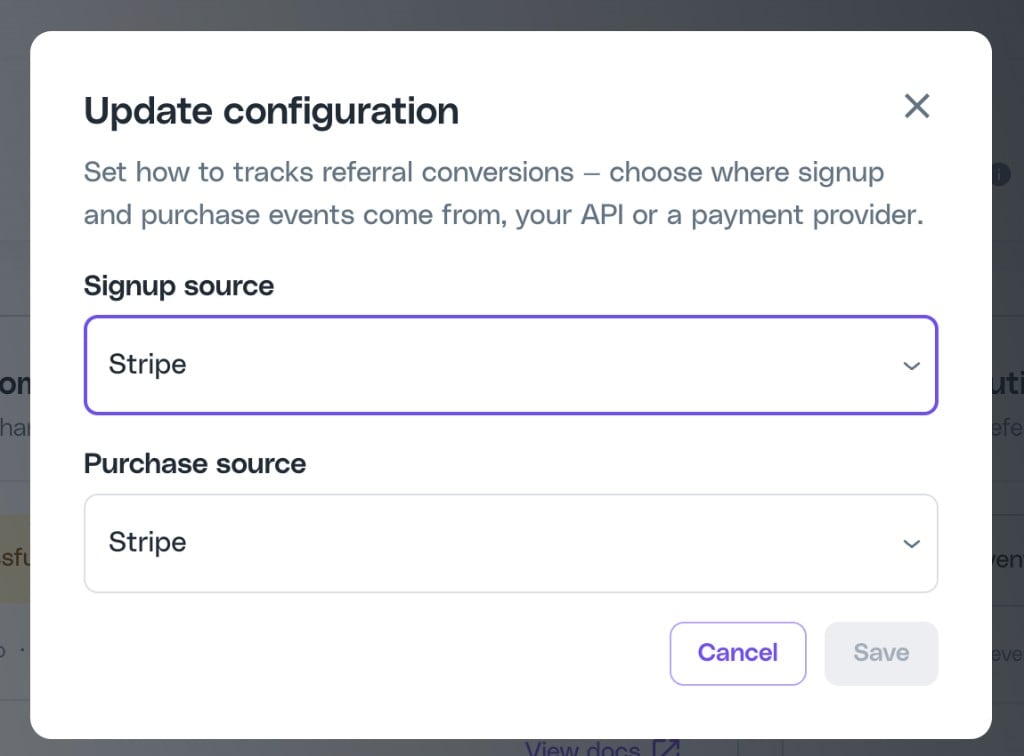
What you can configure
Do not choose a source based on this list alone - confirm it with Cello first (see the warning above). The selectable options are:- Signup source - Cello API, Stripe, Chargebee, or Auto Attribution.
- Purchase source - Cello API, Stripe, or Chargebee.
Sandbox vs production
Auto Attribution
Auto Attribution can only be enabled by Cello Support. Once enabled for your tenant, Auto Attribution appears as a selectable option in the Signup source dropdown. If Auto Attribution is on but a CRM source (Cello API, Stripe, or Chargebee) is selected as the primary signup source, Auto Attribution runs in the background to catch any signups missed by the primary source.Troubleshooting
Checking the same thing from your editor
You don’t have to open the portal. The Cello MCP server exposes the same four-component health check ascello_get_integration_status, so you can ask your coding tool “is my Cello integration working?” and get a report back with a Conclusion, Status and Action per component.