

Overview
The Model Context Protocol (MCP) lets AI tools securely connect to external data and tools. The Cello MCP server brings your referral program into AI clients like Claude, Cursor, VS Code, and Lovable. Developers can build and verify integrations without leaving their editor; growth managers can query program performance in natural language grounded in live Cello data. It’s a single server with tools covering both developer and growth use cases:For developers
Search docs, verify integration health, inspect events, and surface best-practice recommendations while you build.
For growth managers
Ask about program performance, find top referrers, review flagged referrals, and get recommendations.
Enable MCP
An admin needs to turn on the MCP server for your account in the Cello Portal under My account → MCP Server. Once enabled, copy your MCP Server URL from that page - you’ll need it to connect your client. That page also has one-click connect for your tool, or a generic option if it doesn’t have its own card yet.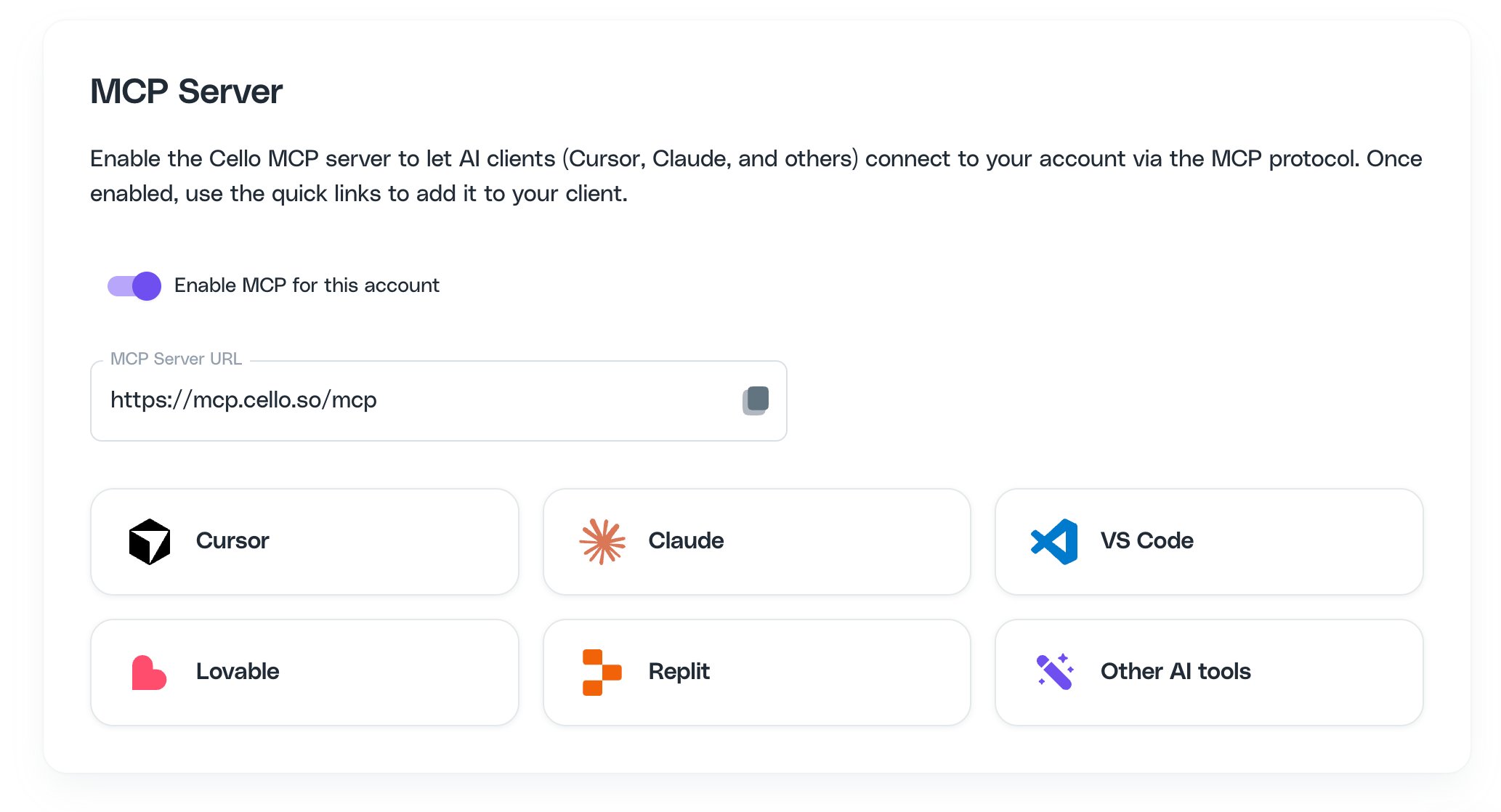
The MCP Server page in the Cello Portal - enable MCP and copy your server URL
Environments
The Cello MCP server has a separate URL for each environment. Use the URL that matches the environment of the Cello account you sign in to:- Production:
https://mcp.cello.so/mcp
How authentication works
The Cello MCP server uses OAuth. When you connect, your client opens a browser window where you sign in to Cello and authorize access. There’s no token to generate, copy, or paste. Your client manages the connection and refreshes it automatically.Next steps
Connect your client
Step-by-step setup for Claude, Claude Code, Cursor, VS Code, Lovable, and more.
Troubleshooting
Fix connection and authentication issues.