Adding the component to your product
First, add the Referral Component into your application with the help of your developer. Simply follow the instructions on the Referral Component integration guide.Customize referrer experience
After adding component to your application, you now can customize referrer experience in Cello Portal.Choose Cello button design and position
You can use either the default Cello button (FAB) or integrate Cello into a menu via the custom launcher, or both as the launcher. If you do not want to use the Cello button, simply uncheck “Show Cello button”. If you are using the Cello button, you can choose on of 3 styles, configure its position and also specify how would you like to display the announcements.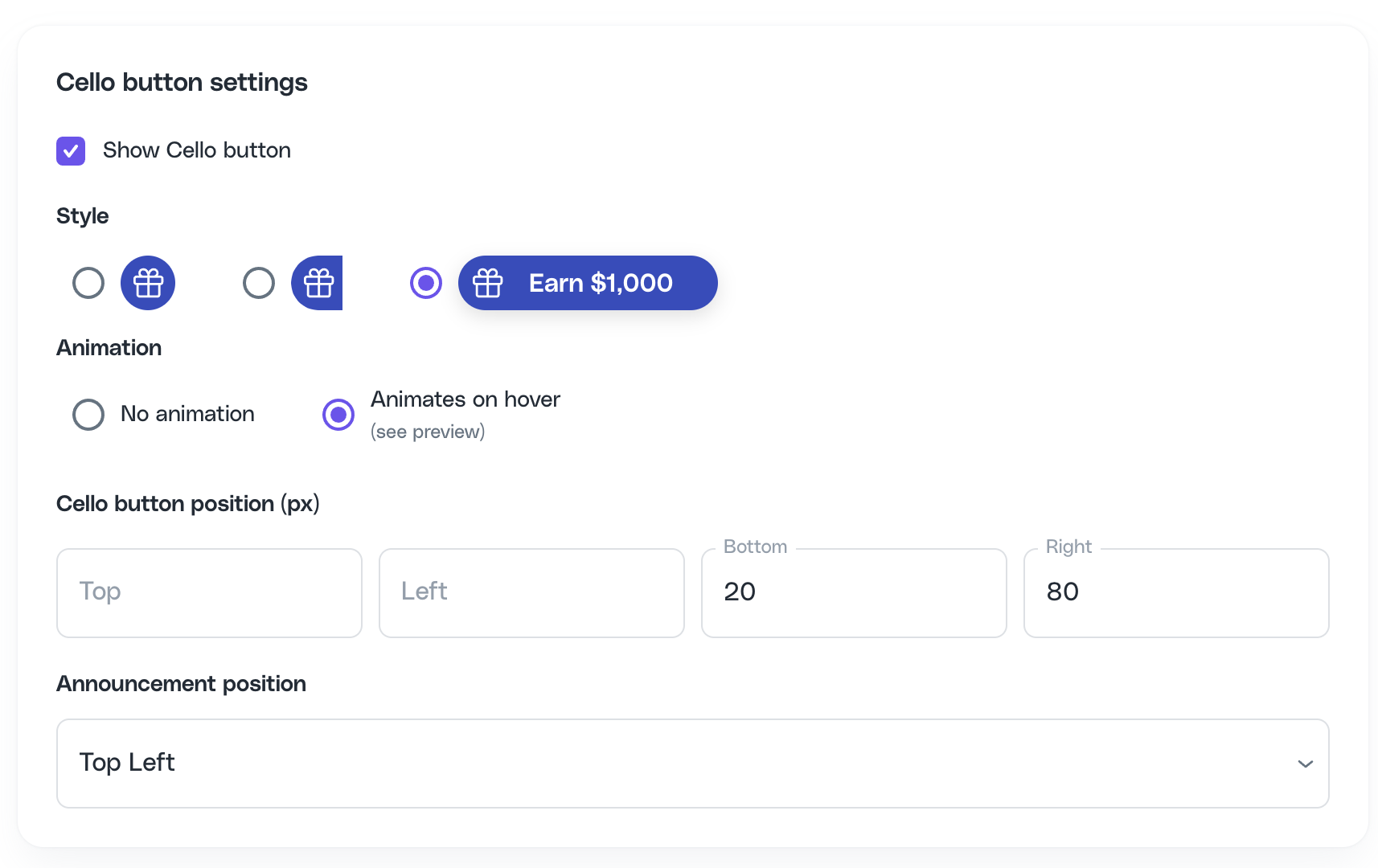
Choose component type
Component can be displayed as a pop-up or a modal. When you choose pop-up view, you can also configure pop-up position on the screen.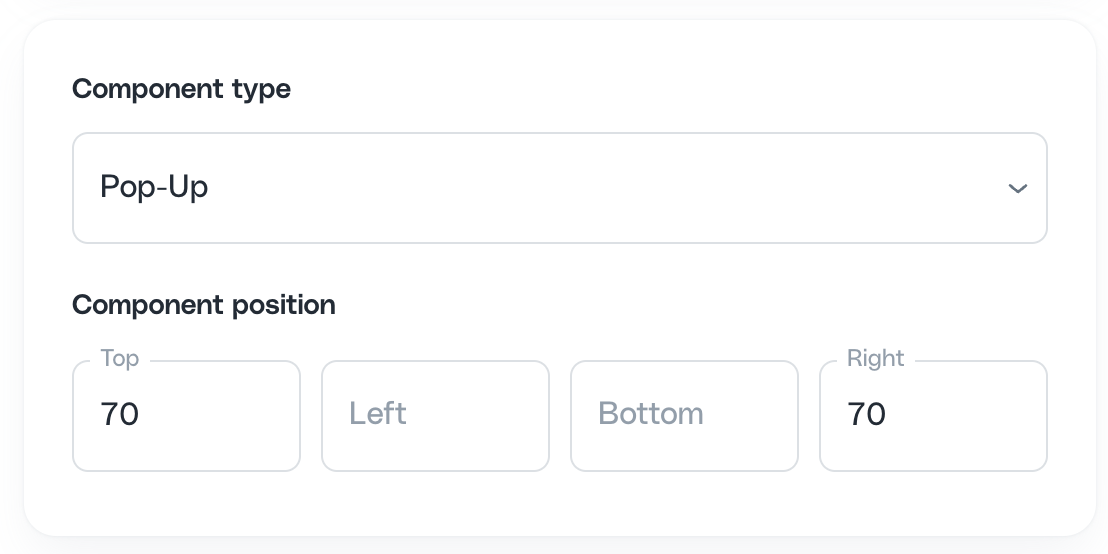
Choose your brand colors for Component
You can choose the primary color for your component, the Cello button color, the Fab icon color, and the color of the notification badge. Use the Light / Dark toggle to configure colors for each theme independently. Previously, dark mode colors were inferred automatically from your light theme - now you can set them explicitly so the Referral Component matches your brand’s dark mode design exactly.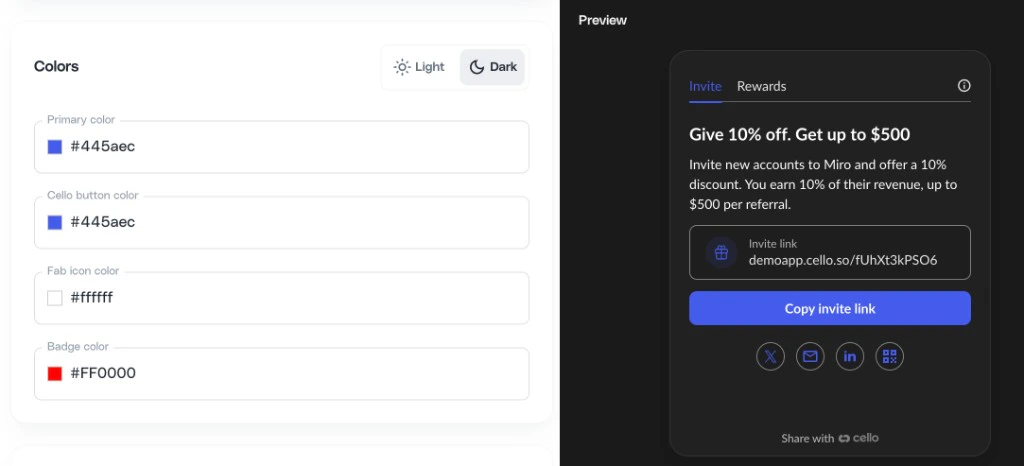
Customize text and copy
Cello manages the copy in the Referral Component, the New User Banner, announcements, and emails centrally so it stays consistent across all enabled languages and reward structures. Copy changes are not configurable self-serve in the Portal. To request a wording change, contact your CSM or support@cello.so with:- The surface (widget / New User Banner / announcement / email)
- The current text
- The proposed new text
- The language(s) the change should apply to
Choose social sharing options
Cello provides many sharing options to choose from. Simple link copy, social sharing including Twitter, LinkedIn, and email, and transfer to mobile by using a QR-code where a user can forward the invite using all the options provided directly from their mobile device.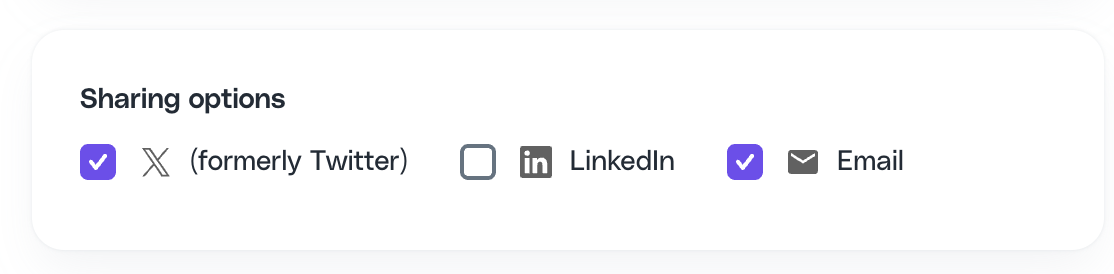
Choose payment method options
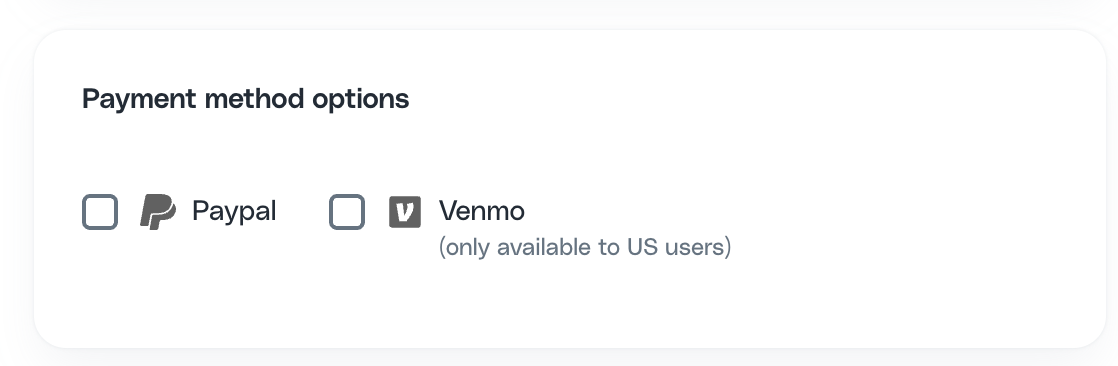
Cello allows users to receive rewards via PayPal or Venmo payments. Additional payment options are planned based on user feedback.