

Notifications types and triggers
Notifications the we support fall into 2 categories: in-product announcement and alert and external like email. These notifications and their associated triggers are designed to work in conjunction your existing product engagement touch points in a seamless way.Alert and Badge
Alert is a notification that appears under Rewards tab. It is accompanied with a badge.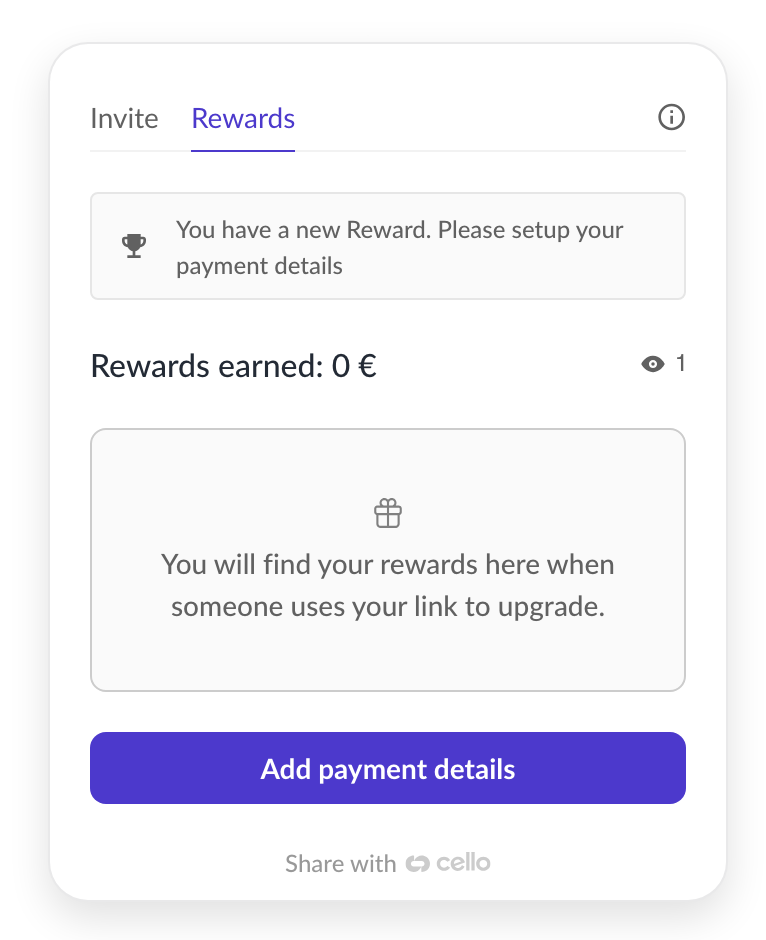 A badge is a small colored dot displayed on the launcher opening the widget (Cello button or Custom Launcher) to draw attention to the activity with the referral program without being too distracting from your core product experience.
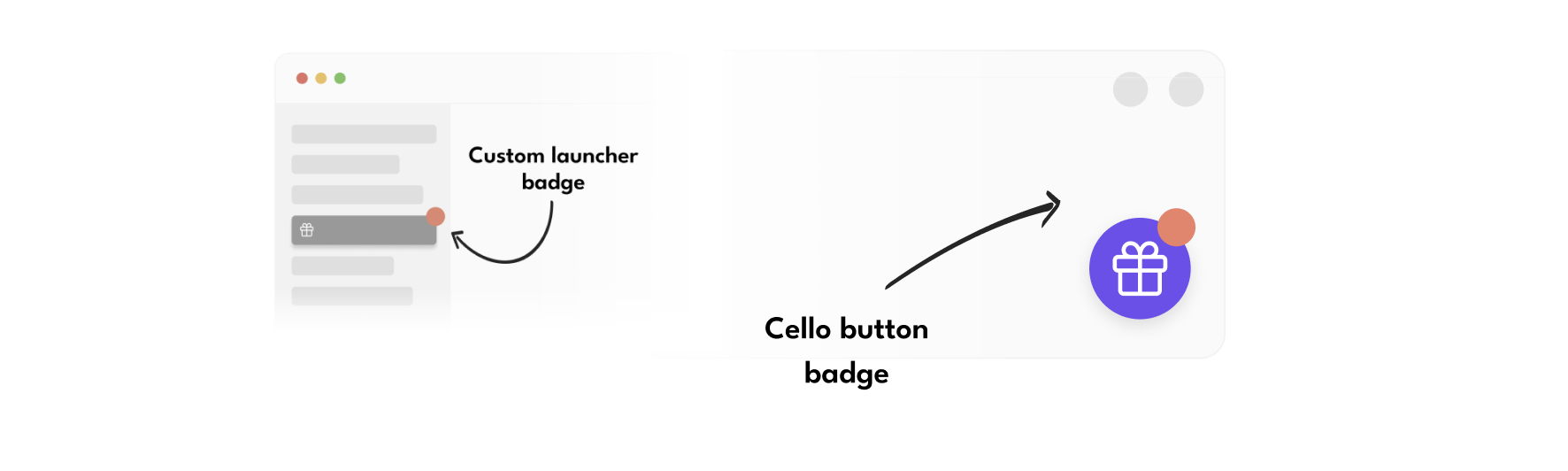
Announcement
Announcements are callout style message that appears anchored to the launcher, either Cello button or Custom Launcher. Announcements can be dismissed by clicking on them or their “X” dismiss button.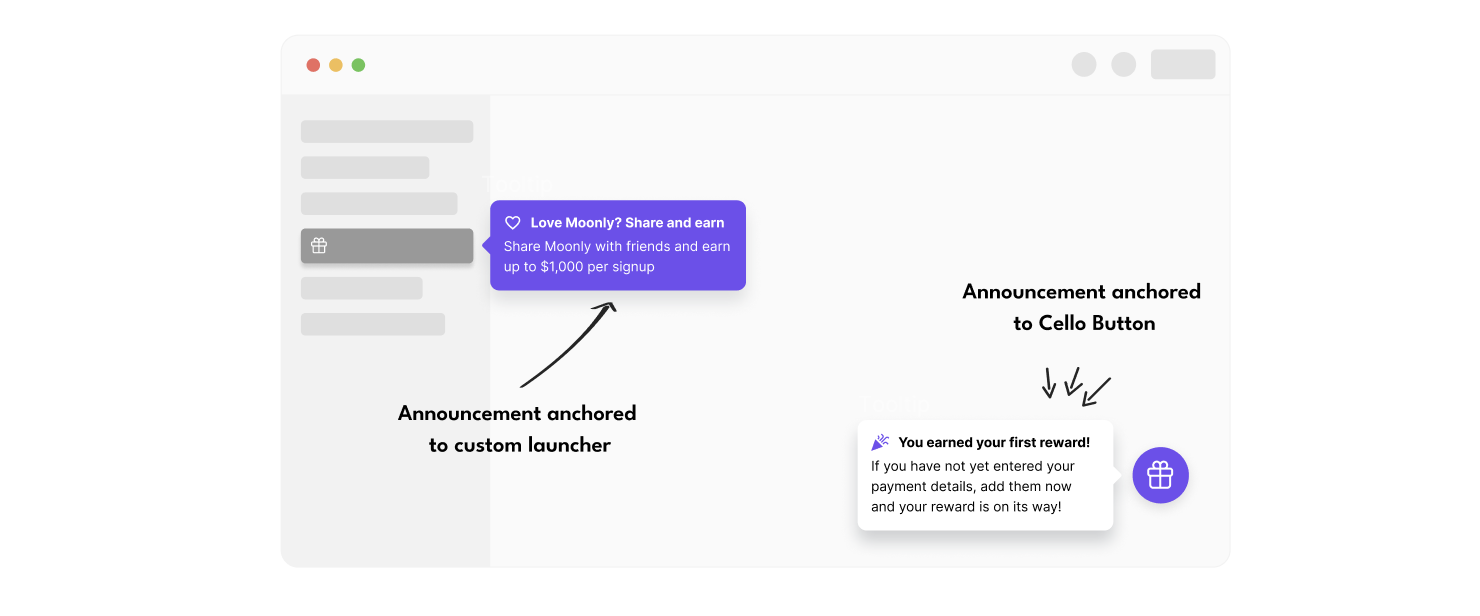
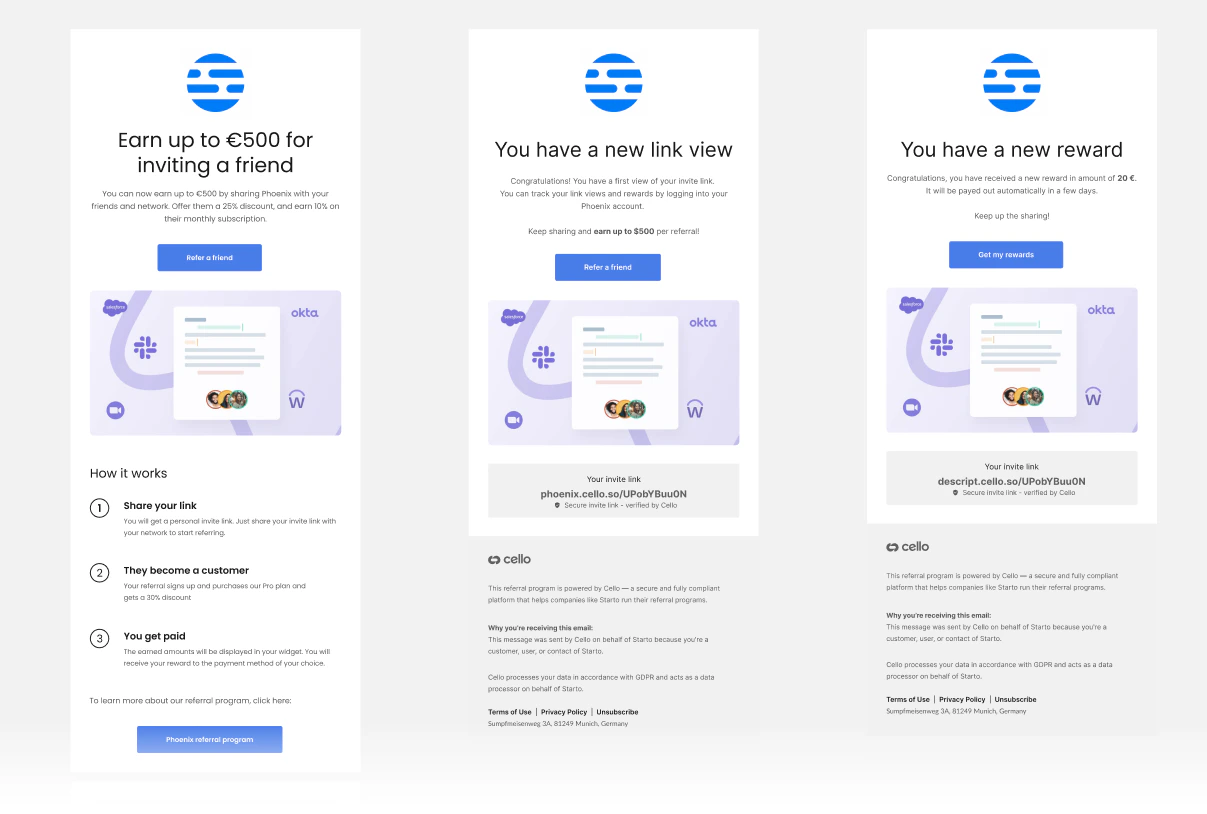
Don’t forget to add user email to the boot command of the Referral component to start sending emails to your users.
Default notification journey
Below is an illustration of the default new referrer’s journey with key milestones and how Cello uses different types of notifications to keep them informed and engaged.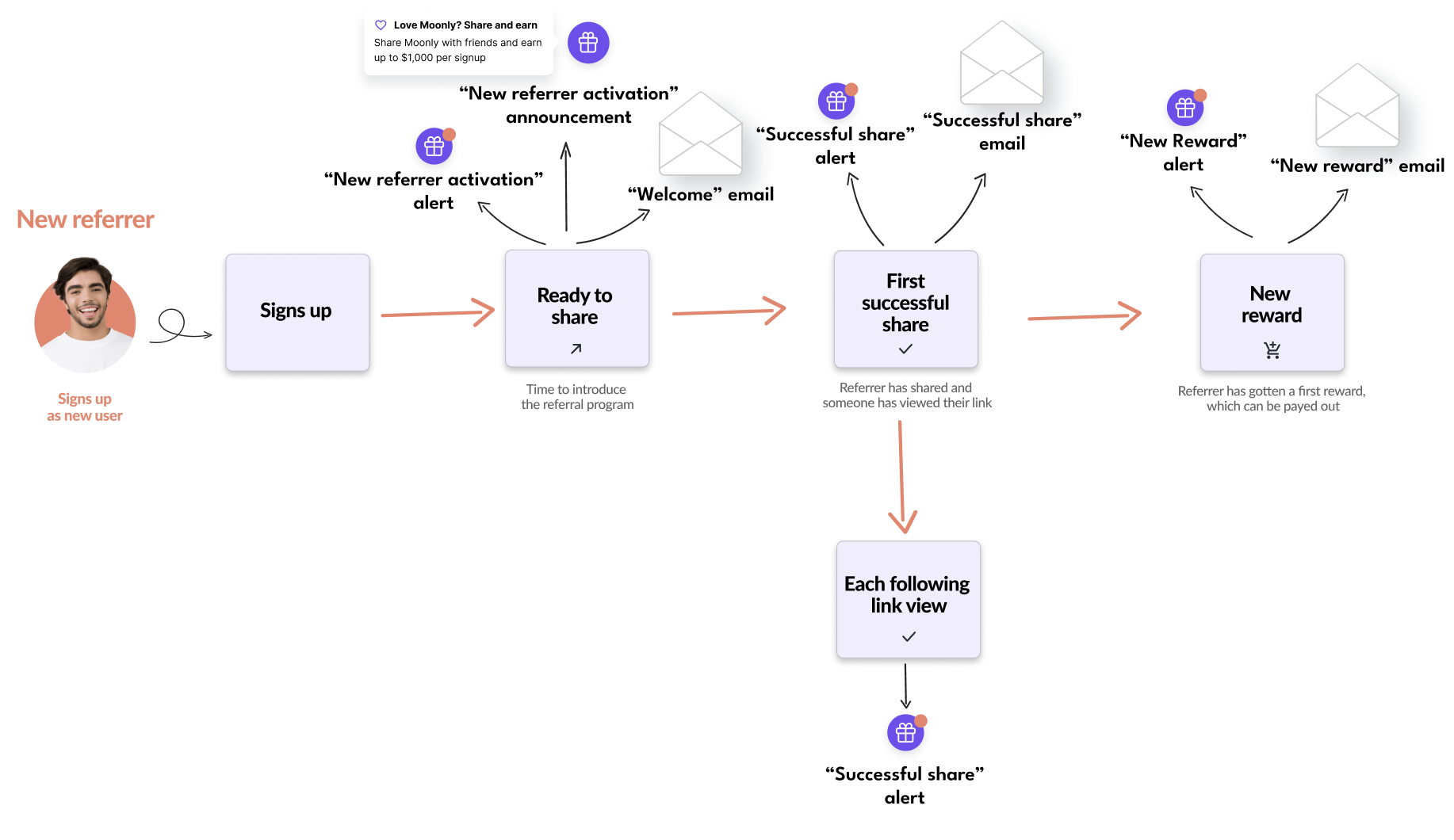
Activation campaign
In addition to the default notification journey, you can run an activation campaign with Cello to activate users for your referral program with recurring announcements.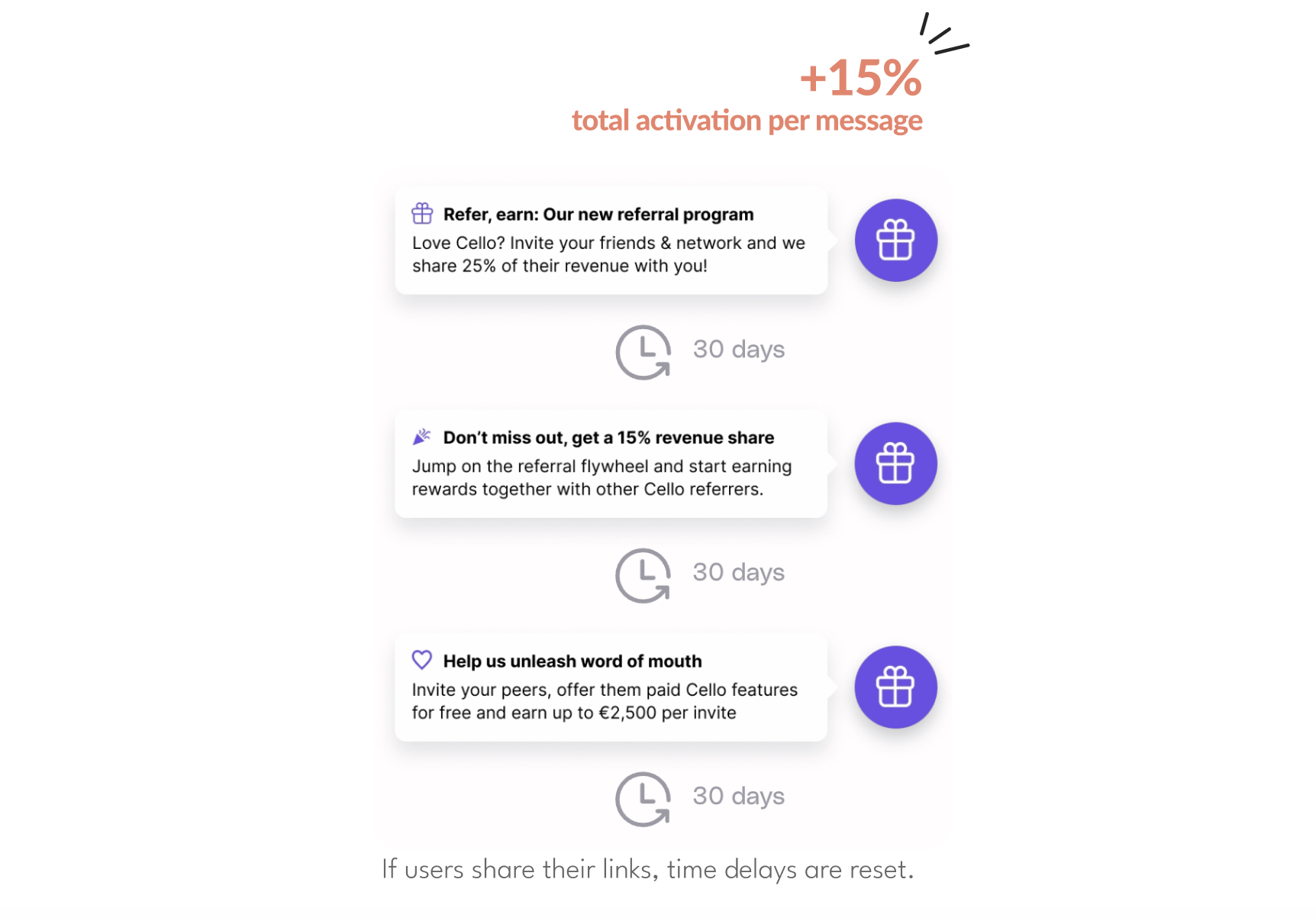 How it works:
- Activation campaign starts 30 days after “New referrer activation” announcement is sent and the user has not acted on it.
- The recurring announcements will be only send if the user full-fills a certain activity pattern in the product like:
- Referrer has used the app at least once after reading the last announcement.
- Last activation announcement was read.
- Referrer didn’t share in the last 30 days.
Notification settings
You can preview and configure which notifications you want Cello to send in your Cello Portal.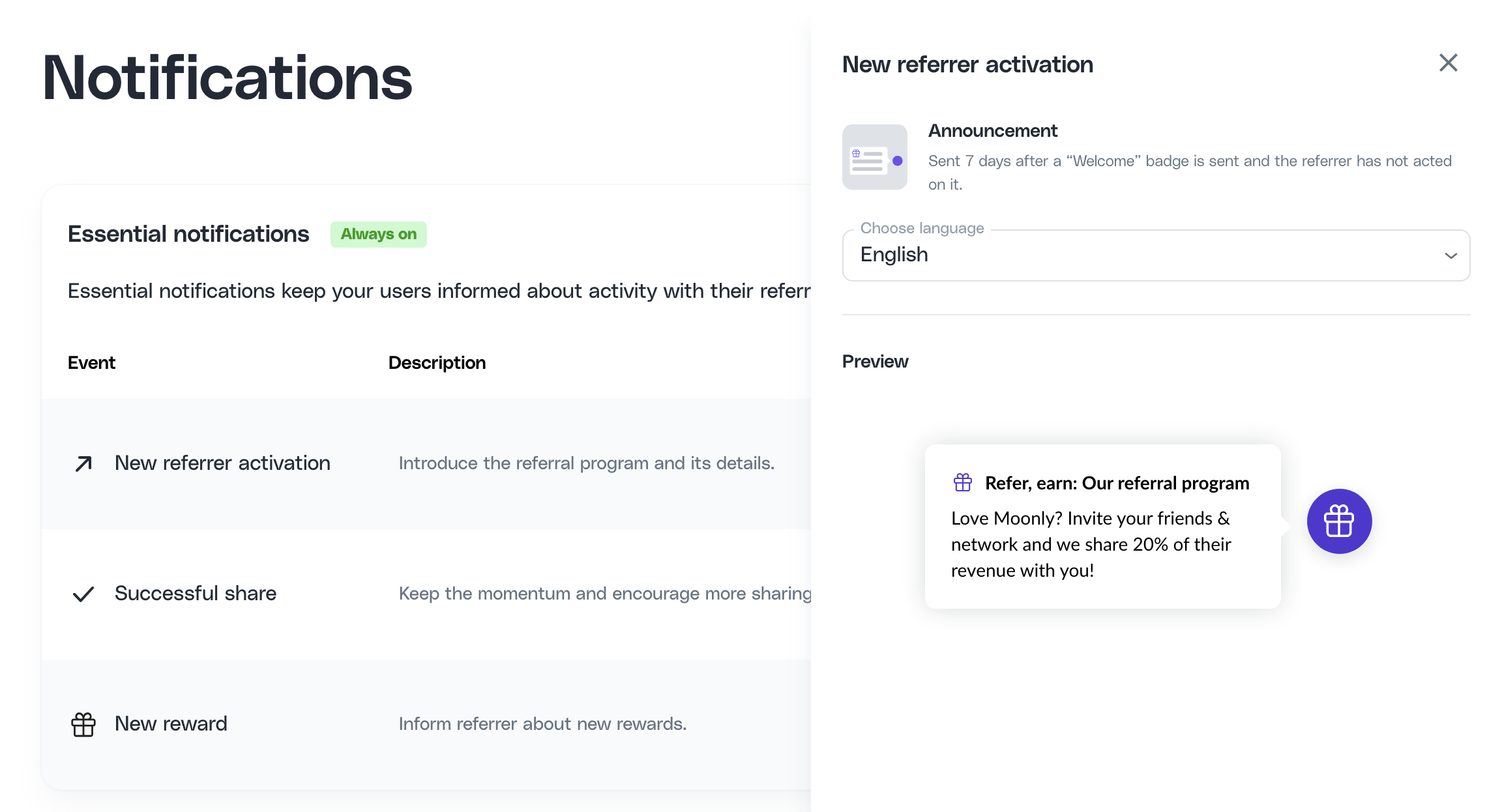 Cello distinguishes between Essential and Engagement notifications. Essential notifications are always on as they are required for the program to run successfully. You can choose to turn off Engagement notifications, however, they do give a significant performance improvement.
Email template customization
You can customize the look and feel of your email templates directly in the Cello Portal. Open any email notification row to bring up the preview panel - editable elements are highlighted on hover.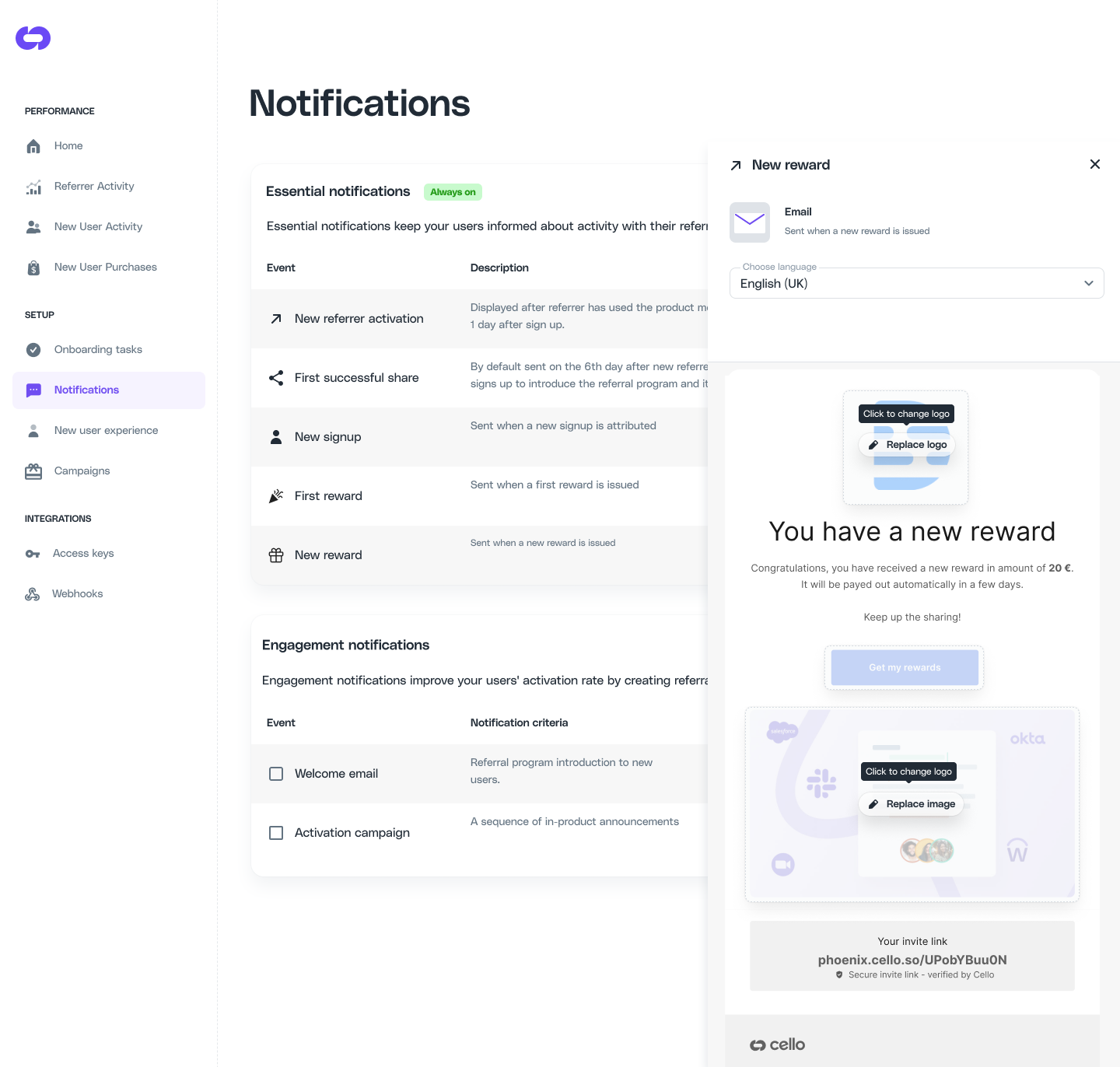
Customizations apply to all email types at once. You can open any individual email preview to see how your changes look across different templates.
Customizable options
The Welcome email has one additional option: a second CTA link, letting you direct new users to a specific page alongside the referral program link.
How to customize
- Go to Emails in the Cello Portal.
- Click any email notification row to open its preview panel.
- Hover over the logo, image, or CTA button - a prompt will appear to click and edit.