> ## Documentation Index
> Fetch the complete documentation index at: https://docs.cello.so/llms.txt
> Use this file to discover all available pages before exploring further.
# Custom Launcher
> Learn how to implement your own button to open Referral Component and display notifications.
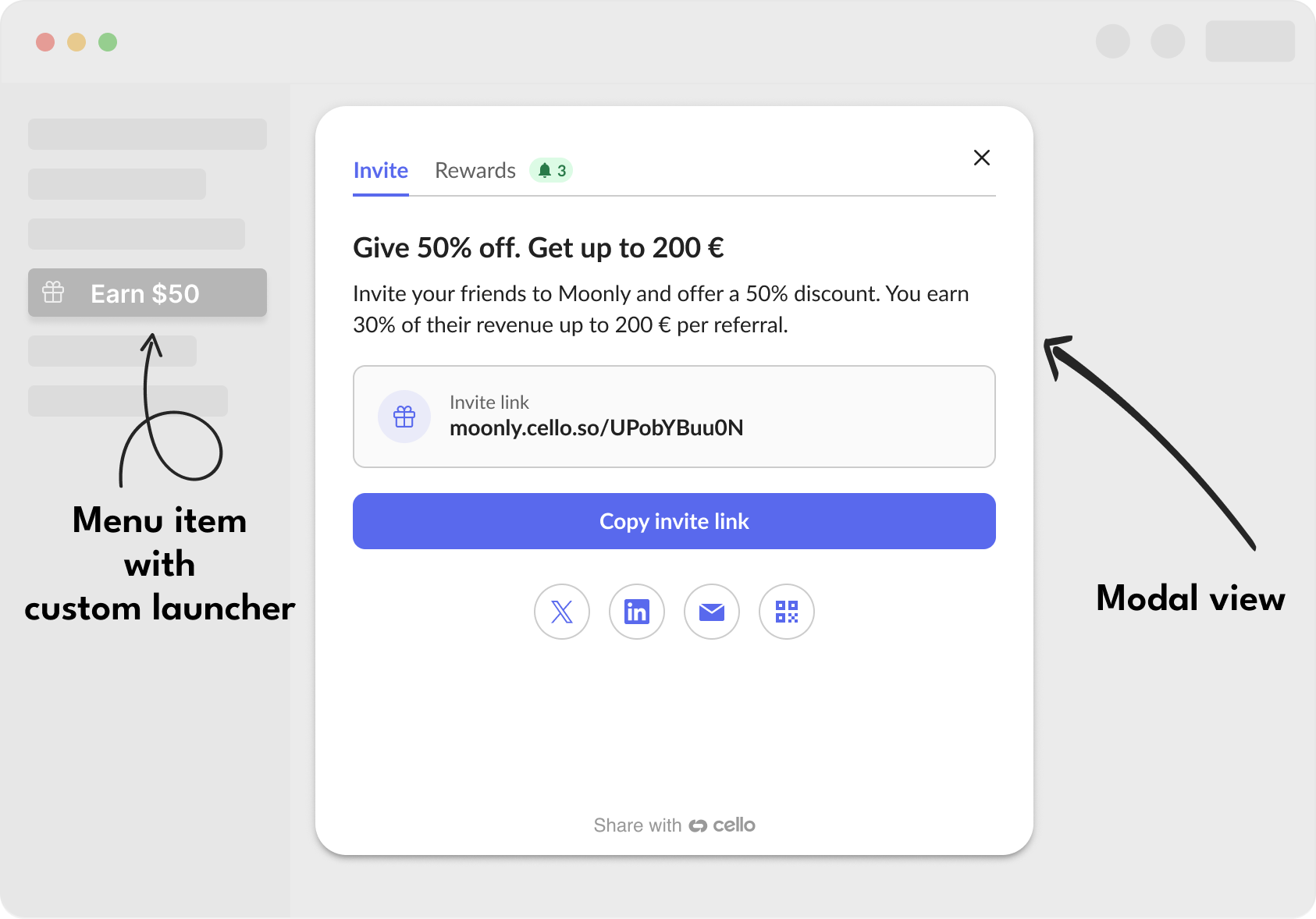
The Cello custom launcher allows you to open the Referral Component from any element that you want to use. **It can be a button, a menu item, a link and you can use multiple places that open Cello Referral Component**. Additionally, you can choose to open it either in a popup or modal view.
**Critical Requirements for Custom Launchers:**
* The custom launcher element **MUST exist in the DOM before Cello initializes**
* The element **MUST have `position: relative` styling**
* You **MUST configure the selector in Cello Portal** to match your element
* Cello does **NOT automatically rescan the DOM** for new elements after initialization
## Implementation Guide
### Step 1: Create your launcher element
Create an HTML element that will trigger the Referral Component. The element must:
1. Exist in the DOM **before** `cello.boot()` is called
2. Have `position: relative` CSS styling
3. Use a unique identifier (ID, class, or attribute)
```jsx theme={null}
// ❌ WRONG: Element created after Cello initialization
function MyComponent() {
const [celloReady, setCelloReady] = useState(false);
useEffect(() => {
initializeCello(); // Initializes Cello
setCelloReady(true);
}, []);
return (
<>
{celloReady && (
// Too late!
)}
);
}
// ✅ CORRECT: Element exists before Cello initialization
function MyComponent() {
const [celloReady, setCelloReady] = useState(false);
useEffect(() => {
// Element already exists in DOM
initializeCello(); // Now initialize Cello
setCelloReady(true);
}, []);
return (
<>
);
}
```
```html theme={null}
```
```vue theme={null}
```
```typescript theme={null}
// ❌ WRONG: Element created after Cello initialization
@Component({
selector: 'app-my-component',
template: `
`
})
export class MyComponent implements OnInit {
celloReady = false;
ngOnInit() {
this.initializeCello();
this.celloReady = true; // Button appears after Cello init
}
}
// ✅ CORRECT: Element exists before Cello initialization
@Component({
selector: 'app-my-component',
template: `
`
})
export class MyComponent implements OnInit {
celloReady = false;
async ngOnInit() {
// Element already exists in DOM (hidden)
await this.initializeCello();
this.celloReady = true; // Now show the button
}
async initializeCello() {
// Initialize Cello here
window.cello = window.cello || { cmd: [] };
window.cello.cmd.push(async (cello) => {
try {
await cello.boot({
productId: "YOUR_PRODUCT_ID",
token: "YOUR_JWT_TOKEN",
// ... other configuration
});
console.log('Cello initialized successfully');
} catch (error) {
console.error('Failed to initialize Cello:', error);
}
});
}
}
```
### Step 2: Configure Cello Portal
1. Navigate to [Referrer Experience in Cello Portal](https://portal.cello.so/setup/referrer-experience)
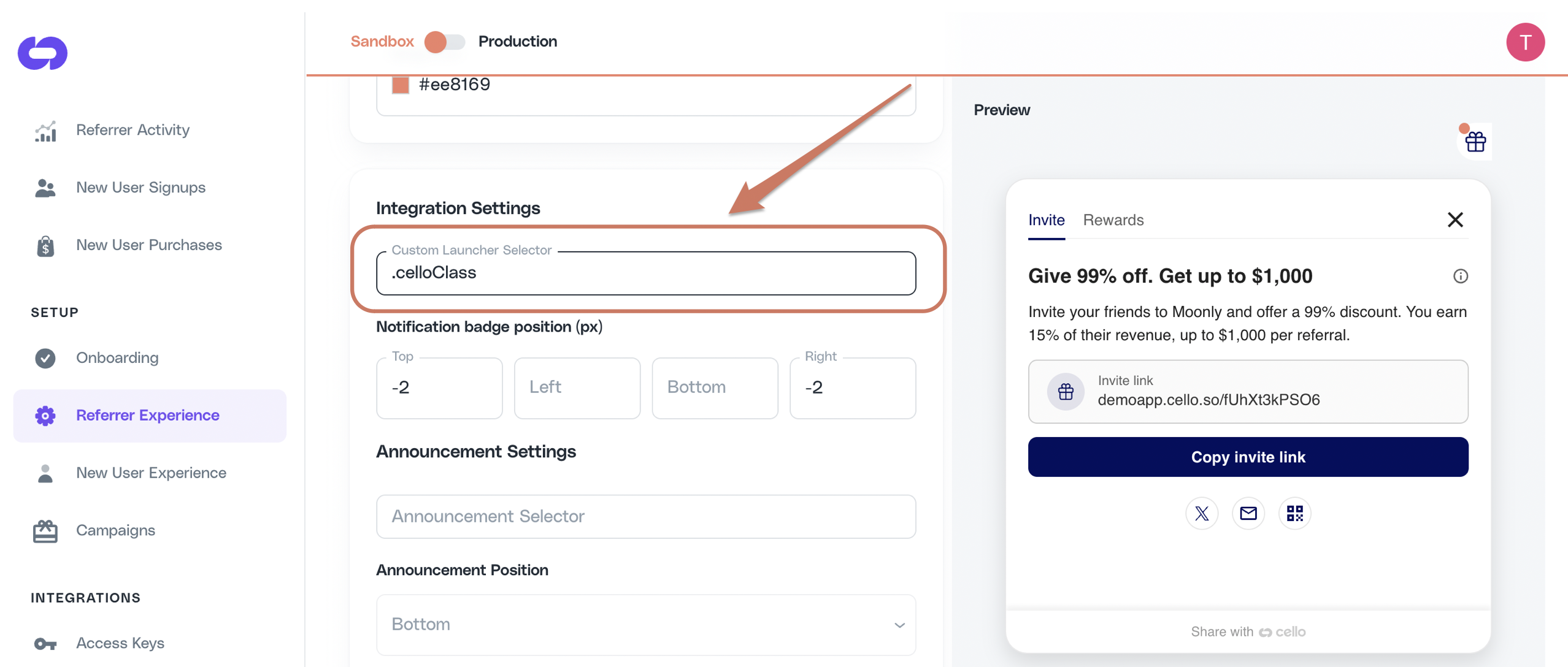
2. Set the **Custom Launcher Selector** to match your element:
* For ID: `#cello-launcher`
* For class: `.cello-launcher`
* For attribute: `[cello-launcher]`
### Step 3: Initialize Cello
After the custom launcher element exists in the DOM, initialize Cello:
```javascript theme={null}
window.cello = window.cello || { cmd: [] };
window.cello.cmd.push(async (cello) => {
try {
await cello.boot({
productId: "YOUR_PRODUCT_ID",
token: "USER_JWT_TOKEN",
// ... other configuration
});
console.log("Cello initialized successfully");
// Custom launcher is now active
} catch (error) {
console.error("Failed to initialize Cello:", error);
}
});
```
## Common Issues and Solutions
### Custom launcher not working
**Problem:** The custom launcher element is created after Cello has already initialized.
**Solution:** Ensure the element exists in the DOM before calling `cello.boot()`. In React/Vue, render the element with `display: none` initially, then show it after initialization.
**Problem:** The element doesn't have `position: relative` styling.
**Solution:** Add `style="position: relative"` to your launcher element. This is required for Cello to properly attach event handlers.
**Problem:** The selector in Cello Portal doesn't match your element, or matches several elements where only one is visible.
**Solution:** Verify the exact selector format:
* ID selectors need `#` prefix: `#my-launcher`
* Class selectors need `.` prefix: `.my-launcher`
* Attribute selectors need brackets: `[my-attribute]`
Also verify uniqueness - Cello uses `document.querySelector` and picks the **first match** in DOM order. Run `document.querySelectorAll("")` in the browser console: it should return exactly one visible element with a non-zero bounding box. If multiple elements match (for example, a wrapper `
` and an inner `` share the same class), Cello will use the first one, which may be invisible. Either narrow the selector with a parent prefix or use an `id`. See [Troubleshooting: announcement not showing](#troubleshooting-announcement-not-showing) for the same diagnostic flow applied to announcements.
**Problem:** In single-page applications, elements are dynamically added/removed.
**Solution:** Keep the launcher element persistent in the DOM, use CSS to control visibility instead of conditional rendering.
## Add reward in launcher
1.5x activation rate3.5x sharing rate
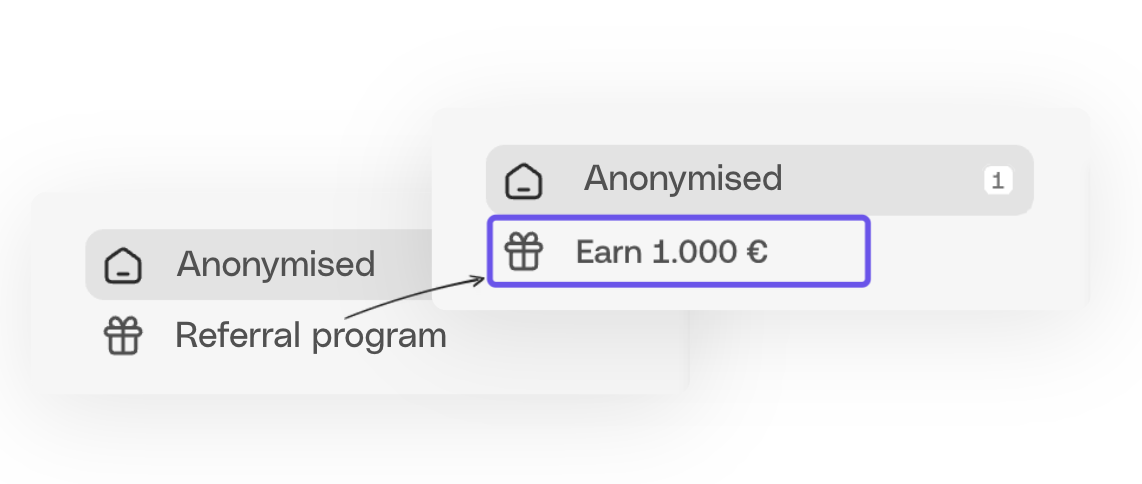
Increase the sharing activity of your users by highlighting the reward directly in the referral launcher inside your menu item.
You can get the text for the menu launcher from [cello.js](/sdk/client-side/cello-js). Text will be localized to the [referrer's language](/guides/user-experience/overview#texts-and-language) and the reward amount is based on the [referrer's campaign](/guides/campaigns/setting-up-campaigns).
```javascript theme={null}
const labels = await window.Cello("getLabels")
const myCustomLauncherLabel = labels.customLauncher
```
## Disable Cello button
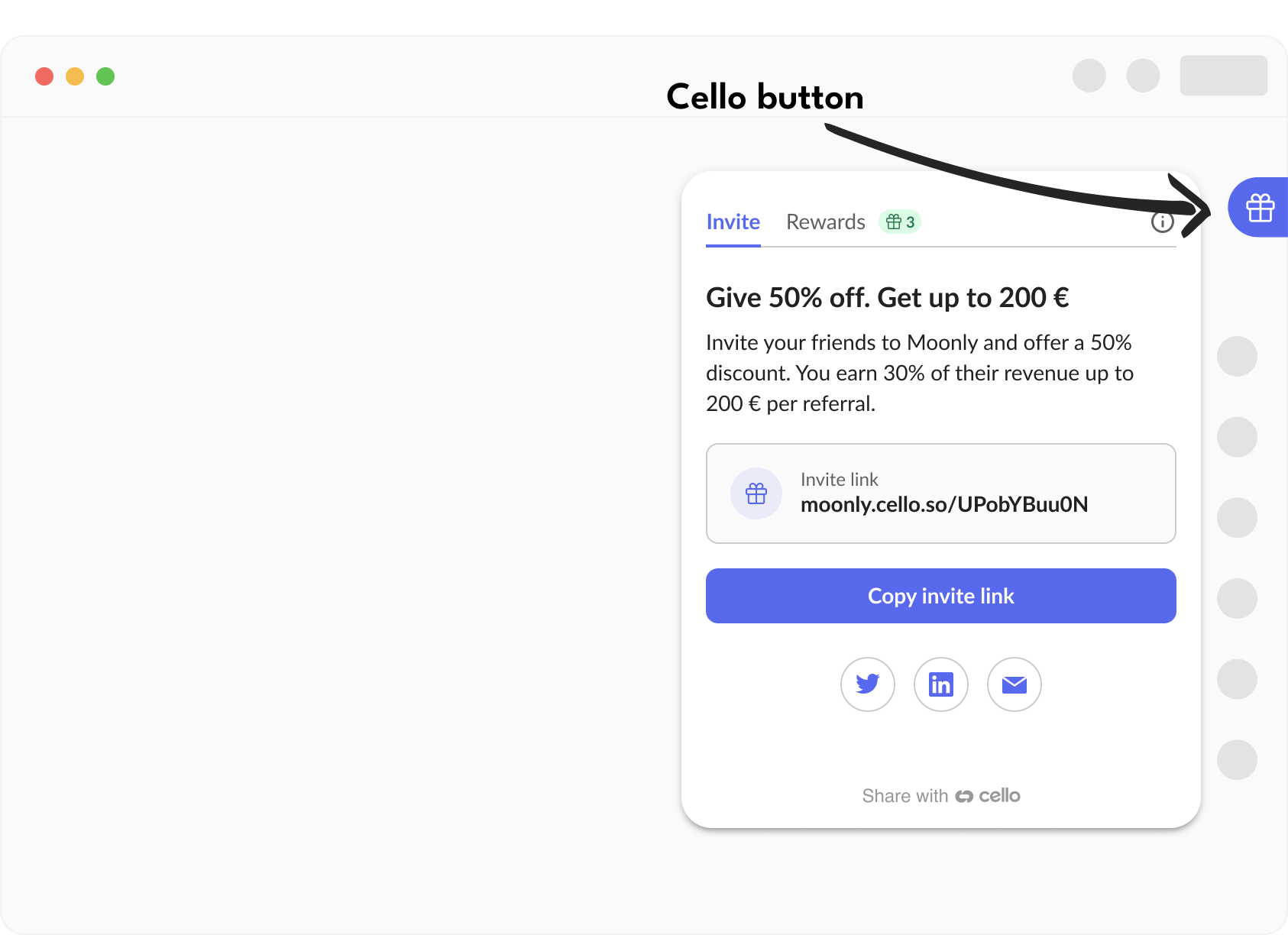
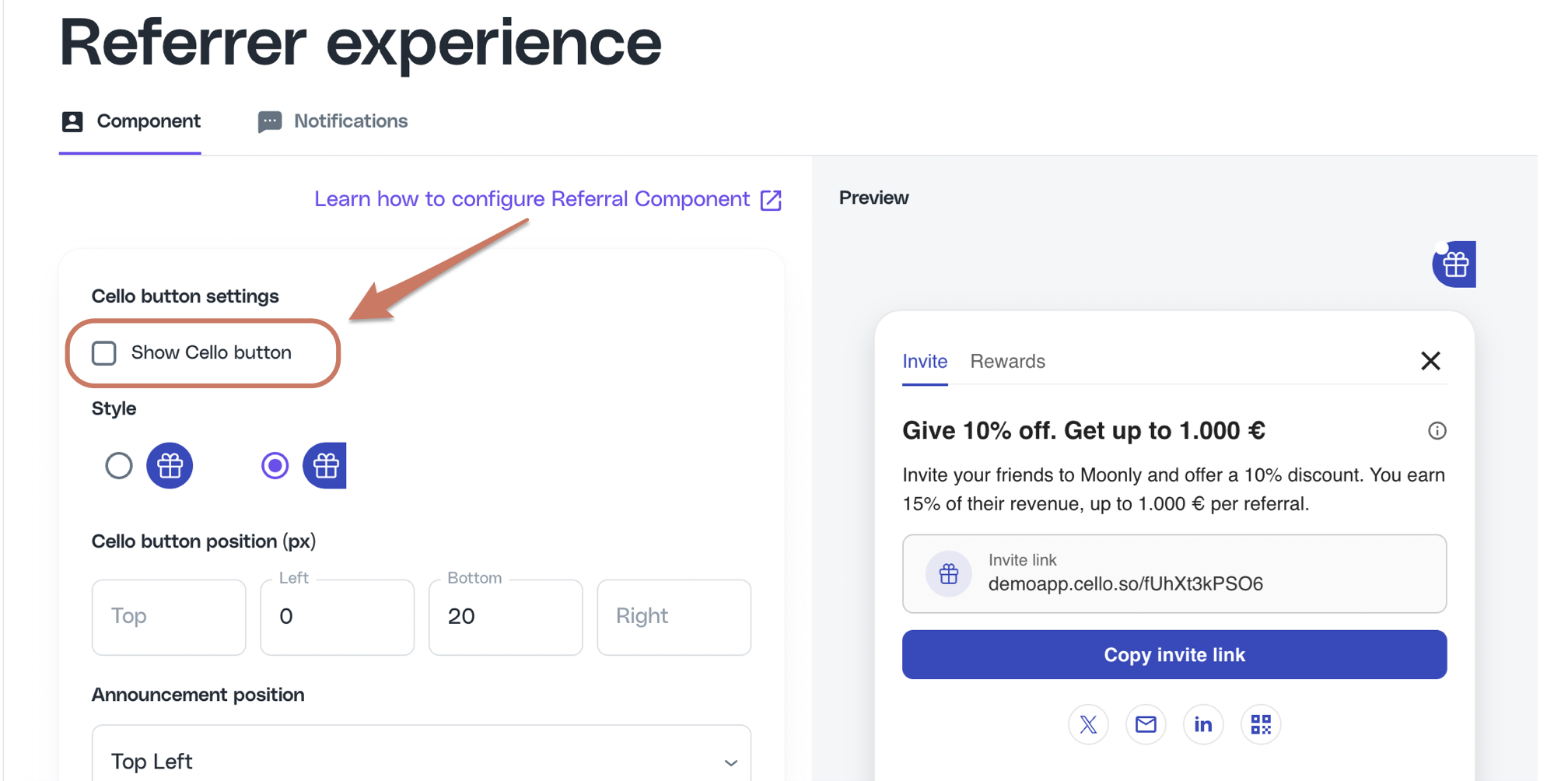
**Cello button** is a floating action button or bookmark style button provided as a default Referral Component launcher. When integrating a Customer Launcher, you may choose to disable the Cello button or keep it as an additional launcher.
You can choose to disable the default launcher, the Cello button. Go to [Referrer experience](https://portal.cello.so/setup/referrer-experience) settings in Cello Portal and **uncheck** "Show Cello Button".
## Configure notification badge
You can control the behaviour of the [notification badge](/guides/user-experience/referral-notifications-and-emails#alert-and-badge), which is attached to your Custom Launcher Selector by default:
This is the default behavior - the element opens the Referral Component on click and shows notification badges.
```html theme={null}
```
Add `data-cello-badge="false"` to hide the notification badge while keeping the element clickable.
Use this when you have multiple launchers but only want badges on some of them.
```html theme={null}
```
Add `data-cello-click="false"` to show the notification badge but prevent clicks from opening the panel.
Use this to show badge notifications on parent menu items for better visibility.
```html theme={null}
Settings Menu
```
The `data-cello-badge` and `data-cello-click` attributes are **optional modifiers**. If you want the default behavior (clickable with badge), you don't need these attributes at all.
**Testing notification badge position**
To trigger a notification badge to be shown on your Custom Launcher simply visit the referral link, of the same user you are testing with, e.g. `moonly.cello.so/pNRB1aYqArN` . A link visit will trigger a [view notification](/guides/user-experience/referral-notifications-and-emails#alert-and-badge) and a badge will be displayed.
## Add announcement selector
Announcement are callout style notifications used to [communicate important information](/guides/user-experience/referral-notifications-and-emails#announcement) to the user if we need to grab their attention and direct them to the Referral Component.
If the Cello button is disabled, the announcement needs to be anchored to one of your Custom Launchers.
Depending on the implementation, the Announcement Selector can be the same as for Custom Launcher, i.e. you can use exactly the same class ID, attribute selector or element ID.
Add this identifier as Announcement Selector under [Referrer Experience in Cello Portal](https://portal.cello.so/setup/referrer-experience).
**Critical requirements for Announcement Selector:**
* The selector **MUST resolve to exactly one element** when passed to `document.querySelector`. Cello uses the **first match** in DOM order and does not fall back to siblings.
* The matched element **MUST be visible and have a non-zero bounding box** at announcement time. `display: none`, `visibility: hidden`, or `width: 0 / height: 0` will cause the announcement to render against an invisible anchor.
* If multiple elements share the same class or attribute (e.g. a wrapper `
` and an inner `` both have `.my-launcher`), narrow the selector with a parent prefix or use an `id`.
* Verify in the browser console: `document.querySelectorAll("")` should return exactly one element with non-zero size. See [Troubleshooting: announcement not showing](#troubleshooting-announcement-not-showing).
Here you can also configure where you want announcement to be shown relative to the Announcement Selector by specifying **Announcement position** and **Announcement position offset.**
**Testing Announcement position**
While choosing Announcement Selector and choosing its position, you will want to see how it looks and make necessary adjustments. You can trigger an [announcement](/guides/user-experience/referral-notifications-and-emails#announcement) using [Cello JS](/sdk/client-side/cello-js-usage#showannouncement-announcement) `showAnnouncement(announcement)` method.
Example below will trigger the default welcome announcement:
```javascript theme={null}
window.Cello("showAnnouncement", { "type": "welcome-announcement-1" })
```
A fulfilled promise from `showAnnouncement` only means the SDK accepted the request. It does **not** mean the announcement is visible. If you see `Promise {: undefined}` in the console but no announcement on the page, see [Troubleshooting: announcement not showing](#troubleshooting-announcement-not-showing).
## Troubleshooting: announcement not showing
**Short answer:** The most common cause is that your **Announcement Selector** matches more than one element, and the first match in DOM order is invisible (zero-sized, hidden, or off-screen). Cello uses `document.querySelector`, which always picks the first match. Narrow the selector until `document.querySelectorAll()` returns exactly one visible element.
### How announcement positioning works
* Cello calls `document.querySelector()` once when an announcement is rendered.
* `document.querySelector` returns the **first matching element in DOM order**, not the most visible one.
* The matched element must be present in the DOM, have non-zero width and height, and not be `display: none` or `visibility: hidden` at the moment the announcement renders.
* A fulfilled `showAnnouncement` promise means the SDK accepted the request. It does **not** mean the announcement is visible to the user.
* Cello does not retry, fall back to siblings, or rescan the DOM if the matched element is invisible.
### Symptom: `showAnnouncement` returns a fulfilled promise but nothing appears
If your browser console shows:
```
> window.Cello("showAnnouncement", { "type": "welcome-announcement-1" })
< Promise {}
[[PromiseState]]: "fulfilled"
[[PromiseResult]]: undefined
```
...this only means the SDK accepted the call. The announcement may still be invisible because of the selector resolving to a hidden or zero-sized element.
### Symptom map
| Symptom | What to run in DevTools | What it means | Fix |
| ------------------------------------------------------------------------------------ | ------------------------------------------------------------------- | ---------------------------------------------------------------------------------------------- | -------------------------------------------------------------------------------------------------------------------------------------------------------------------------------- |
| `showAnnouncement` returns fulfilled promise but no announcement appears | `document.querySelectorAll("").length` | If `> 1`, your selector is too broad. Cello picked the first match, which is likely invisible. | Use a more specific selector (add a parent class, or use an `id`). Update **Announcement Selector** in [Referrer Experience](https://portal.cello.so/setup/referrer-experience). |
| Announcement renders at the top-left of the viewport (0,0) | `document.querySelector("").getBoundingClientRect()` | If width/height is `0`, the matched element has no layout box. | Move the class/attribute to the visible element (icon/button), not a wrapper `
` or ``. |
| Announcement renders but is cut off or off-screen | Same as above; check `top` / `left` values | The matched element is off-screen or inside a scrolled container. | Anchor to an in-viewport element, or adjust **Announcement position offset** in the Portal. |
| `querySelectorAll` returns `0` matches | n/a | Element does not exist when the announcement renders, or the selector has a typo. | Confirm the element exists before `cello.boot()`; check `#`, `.`, `[]` prefixes match your element. |
| `querySelectorAll` returns `1` and the element is visible, but still no announcement | Inspect computed styles | The matched element may be missing `position: relative`. | Add `position: relative` to the matched element. |
### Related questions this section answers
* Why does `showAnnouncement` resolve but no announcement appears?
* Why is my Cello announcement invisible?
* Why does my Cello announcement render at the top-left of the screen?
* How do I fix "announcement selector matches multiple elements"?
* Why does Cello pick the wrong element for my announcement?
* Cello announcement not working / not showing / not appearing
 ### Step 3: Initialize Cello
After the custom launcher element exists in the DOM, initialize Cello:
```javascript theme={null}
window.cello = window.cello || { cmd: [] };
window.cello.cmd.push(async (cello) => {
try {
await cello.boot({
productId: "YOUR_PRODUCT_ID",
token: "USER_JWT_TOKEN",
// ... other configuration
});
console.log("Cello initialized successfully");
// Custom launcher is now active
} catch (error) {
console.error("Failed to initialize Cello:", error);
}
});
```
## Common Issues and Solutions
### Custom launcher not working
### Step 3: Initialize Cello
After the custom launcher element exists in the DOM, initialize Cello:
```javascript theme={null}
window.cello = window.cello || { cmd: [] };
window.cello.cmd.push(async (cello) => {
try {
await cello.boot({
productId: "YOUR_PRODUCT_ID",
token: "USER_JWT_TOKEN",
// ... other configuration
});
console.log("Cello initialized successfully");
// Custom launcher is now active
} catch (error) {
console.error("Failed to initialize Cello:", error);
}
});
```
## Common Issues and Solutions
### Custom launcher not working
 You can get the text for the menu launcher from [cello.js](/sdk/client-side/cello-js). Text will be localized to the [referrer's language](/guides/user-experience/overview#texts-and-language) and the reward amount is based on the [referrer's campaign](/guides/campaigns/setting-up-campaigns).
```javascript theme={null}
const labels = await window.Cello("getLabels")
const myCustomLauncherLabel = labels.customLauncher
```
## Disable Cello button
**Cello button** is a floating action button or bookmark style button provided as a default Referral Component launcher. When integrating a Customer Launcher, you may choose to disable the Cello button or keep it as an additional launcher.
You can get the text for the menu launcher from [cello.js](/sdk/client-side/cello-js). Text will be localized to the [referrer's language](/guides/user-experience/overview#texts-and-language) and the reward amount is based on the [referrer's campaign](/guides/campaigns/setting-up-campaigns).
```javascript theme={null}
const labels = await window.Cello("getLabels")
const myCustomLauncherLabel = labels.customLauncher
```
## Disable Cello button
**Cello button** is a floating action button or bookmark style button provided as a default Referral Component launcher. When integrating a Customer Launcher, you may choose to disable the Cello button or keep it as an additional launcher.
 You can choose to disable the default launcher, the Cello button. Go to [Referrer experience](https://portal.cello.so/setup/referrer-experience) settings in Cello Portal and **uncheck** "Show Cello Button".
 ## Configure notification badge
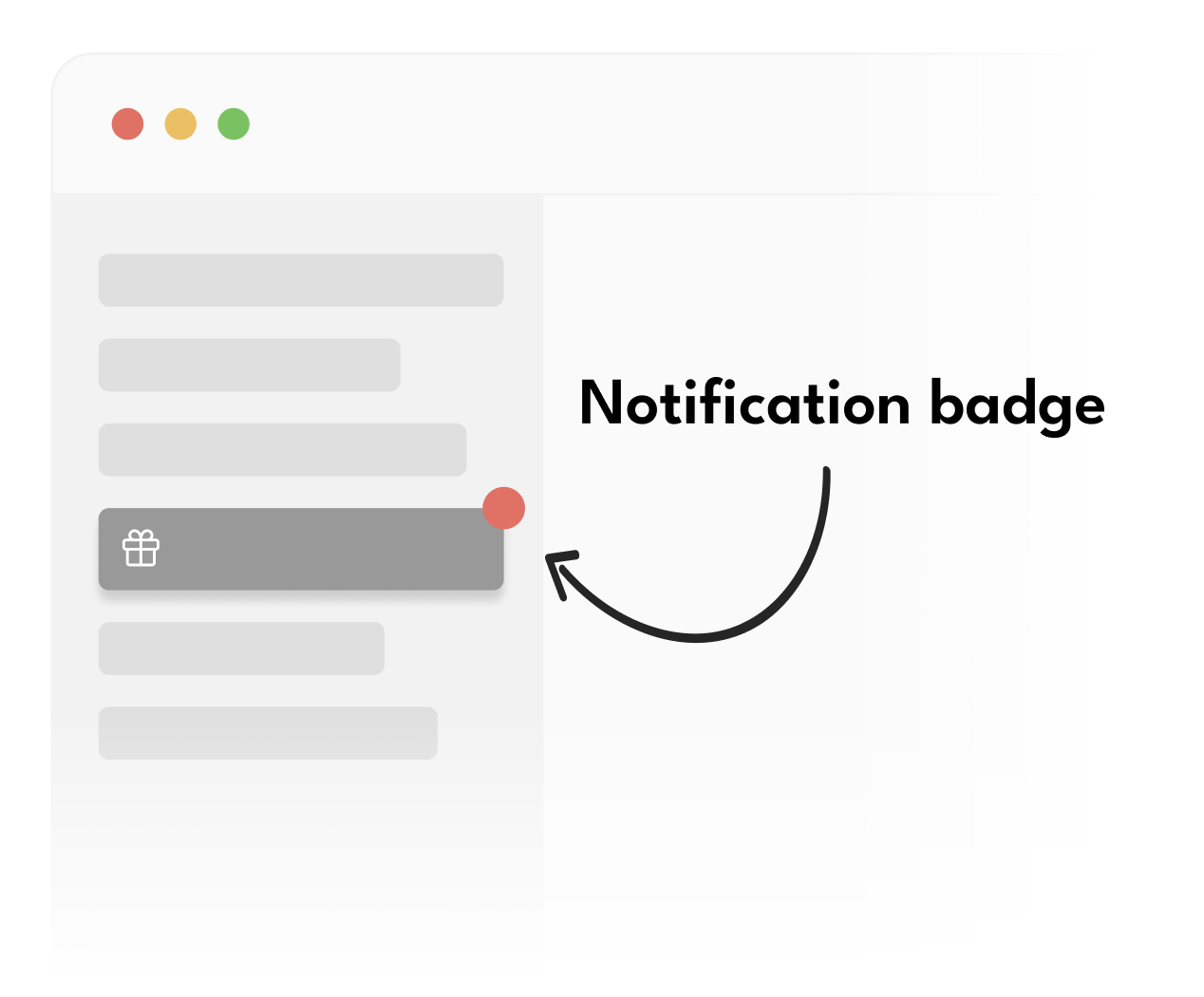 You can control the behaviour of the [notification badge](/guides/user-experience/referral-notifications-and-emails#alert-and-badge), which is attached to your Custom Launcher Selector by default:
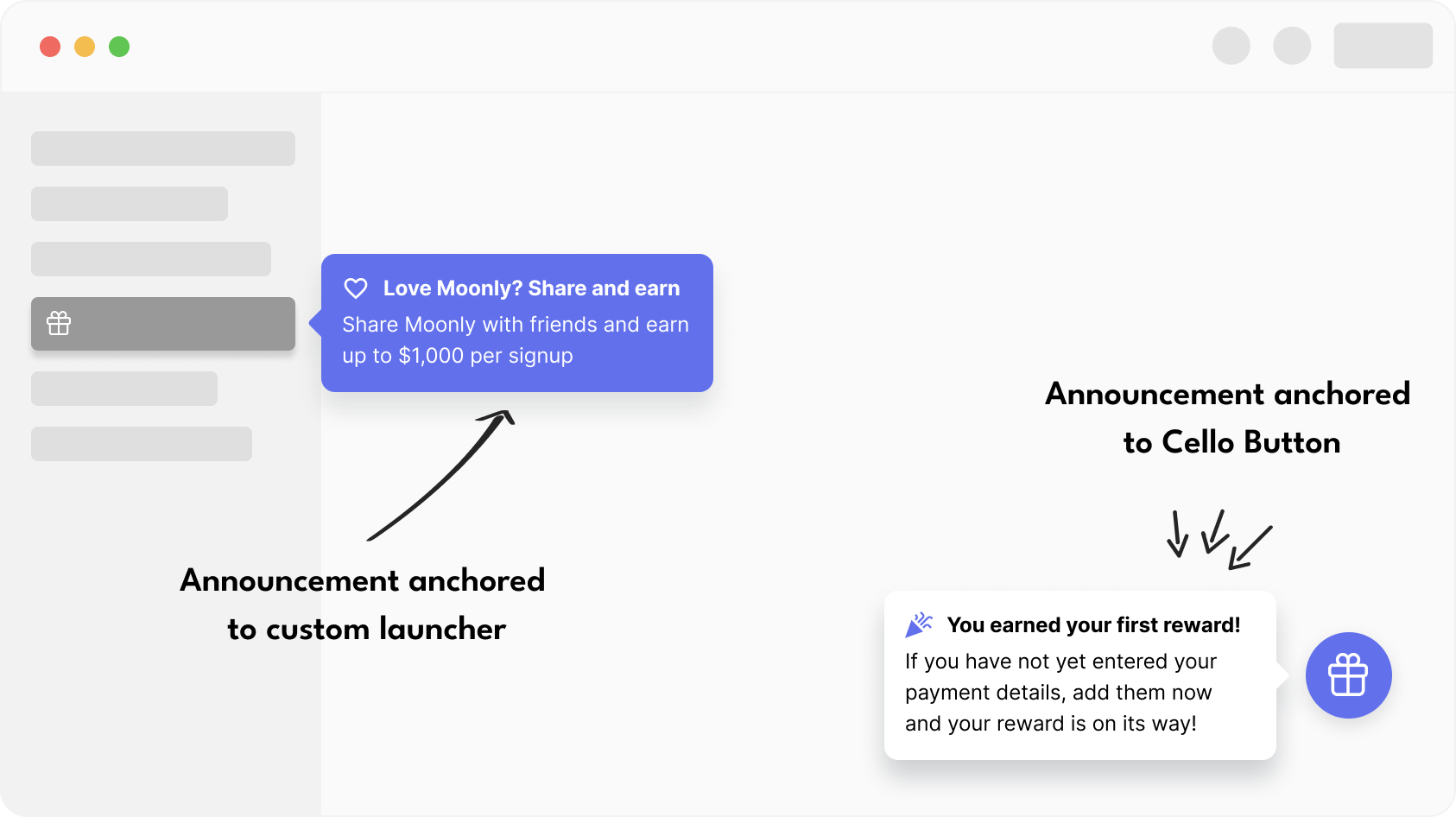 Announcement are callout style notifications used to [communicate important information](/guides/user-experience/referral-notifications-and-emails#announcement) to the user if we need to grab their attention and direct them to the Referral Component.
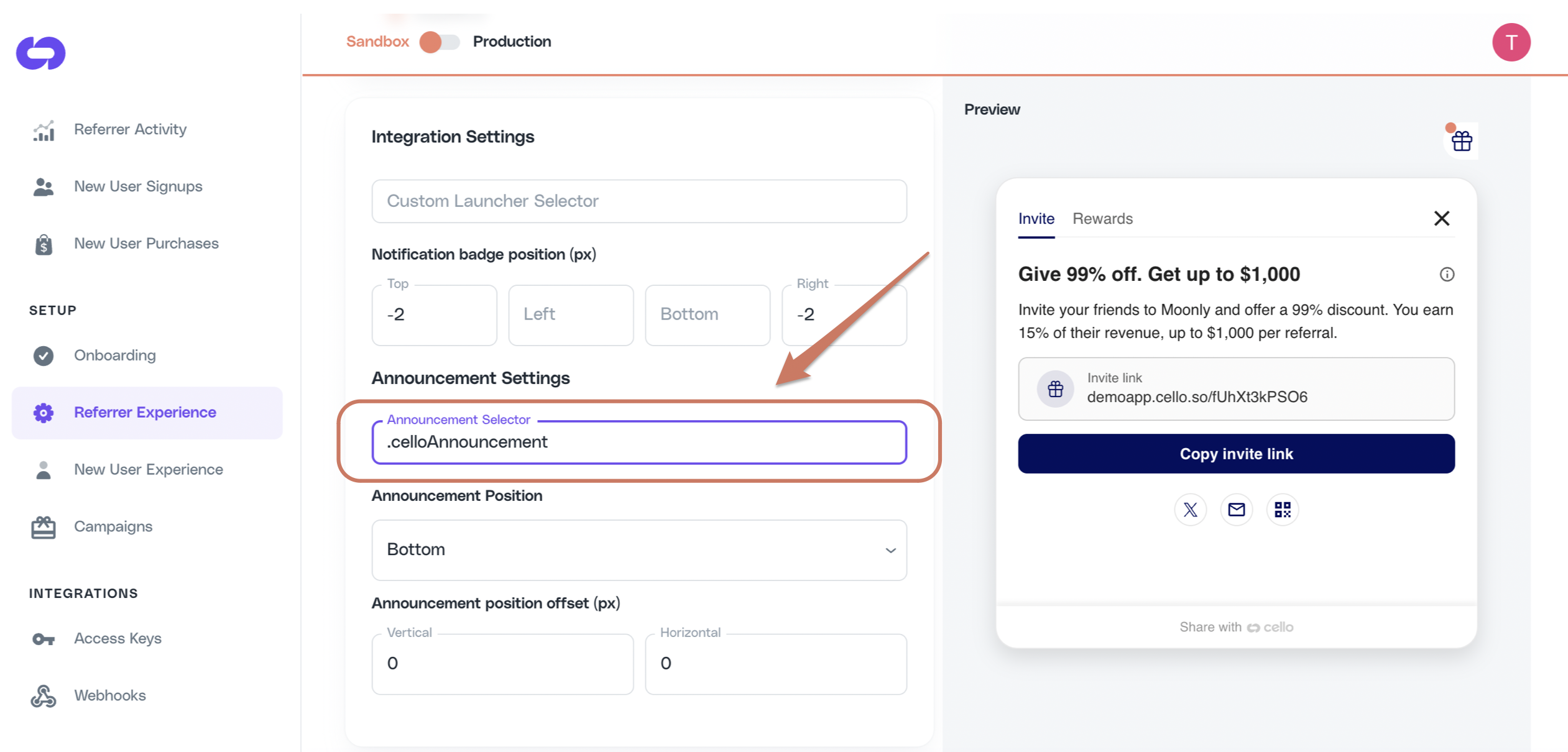 Here you can also configure where you want announcement to be shown relative to the Announcement Selector by specifying **Announcement position** and **Announcement position offset.**