> ## Documentation Index
> Fetch the complete documentation index at: https://docs.cello.so/llms.txt
> Use this file to discover all available pages before exploring further.
# Cello MCP
> Connect Cello to your AI tools through the Model Context Protocol (MCP)
## Overview
The [Model Context Protocol (MCP)](https://modelcontextprotocol.io/) lets AI tools securely connect to external data and tools. The Cello MCP server brings your referral program into AI clients like **Claude**, **Cursor**, **VS Code**, and **Lovable**. Developers can build and verify integrations without leaving their editor; growth managers can query program performance in natural language grounded in live Cello data.
It's a **single server with role-based tools**. What you can do depends on your Cello role:
Search docs, verify integration health, inspect events, and surface best-practice recommendations while you build.
Ask about program performance, find top referrers, review flagged referrals, and get recommendations.
## Enable MCP
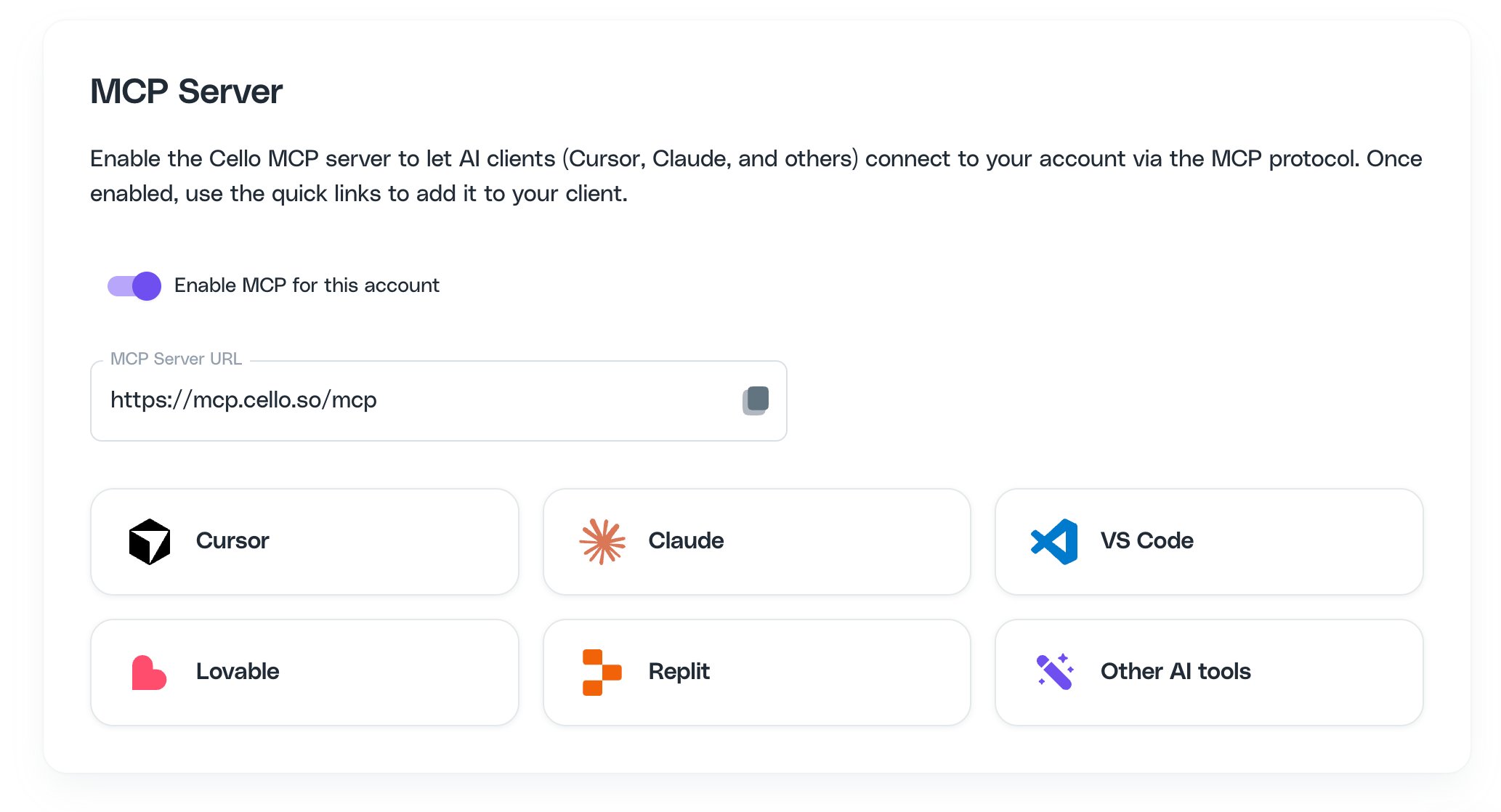
An admin needs to turn on the MCP server for your account in the [Cello Portal](https://portal.cello.so) under **Integrations → MCP**. Once enabled, copy your **MCP Server URL** from that page — you'll need it to connect your client.
 ## Environments
The Cello MCP server has a **separate URL for each environment**. Use the URL that matches the environment of the Cello account you sign in to:
* **Production**: `https://mcp.cello.so/mcp`
* **Sandbox**: `https://mcp.sandbox.cello.so/mcp`
Examples throughout these docs use the Production URL. Swap in the Sandbox URL if you're connecting to a Sandbox tenant.
## How authentication works
The Cello MCP server uses **OAuth**. When you connect, your client opens a browser window where you sign in to Cello and authorize access. There's no token to generate, copy, or paste. Your client manages the connection and refreshes it automatically.
## Next steps
Step-by-step setup for Claude, Claude Code, Cursor, VS Code, Lovable, and more.
Fix connection and authentication issues.
## Environments
The Cello MCP server has a **separate URL for each environment**. Use the URL that matches the environment of the Cello account you sign in to:
* **Production**: `https://mcp.cello.so/mcp`
* **Sandbox**: `https://mcp.sandbox.cello.so/mcp`
Examples throughout these docs use the Production URL. Swap in the Sandbox URL if you're connecting to a Sandbox tenant.
## How authentication works
The Cello MCP server uses **OAuth**. When you connect, your client opens a browser window where you sign in to Cello and authorize access. There's no token to generate, copy, or paste. Your client manages the connection and refreshes it automatically.
## Next steps
Step-by-step setup for Claude, Claude Code, Cursor, VS Code, Lovable, and more.
Fix connection and authentication issues.