> ## Documentation Index
> Fetch the complete documentation index at: https://docs.cello.so/llms.txt
> Use this file to discover all available pages before exploring further.
# Connect your client
> Set up the Cello MCP server in Claude, Claude Code, Cursor, VS Code, Windsurf, Lovable, and other MCP clients
The Cello MCP server uses **OAuth**. When you connect, your client opens a browser window to sign in to Cello and authorize access. There's no token to generate or paste, and your client refreshes the connection automatically.
```
https://mcp.cello.so/mcp
```
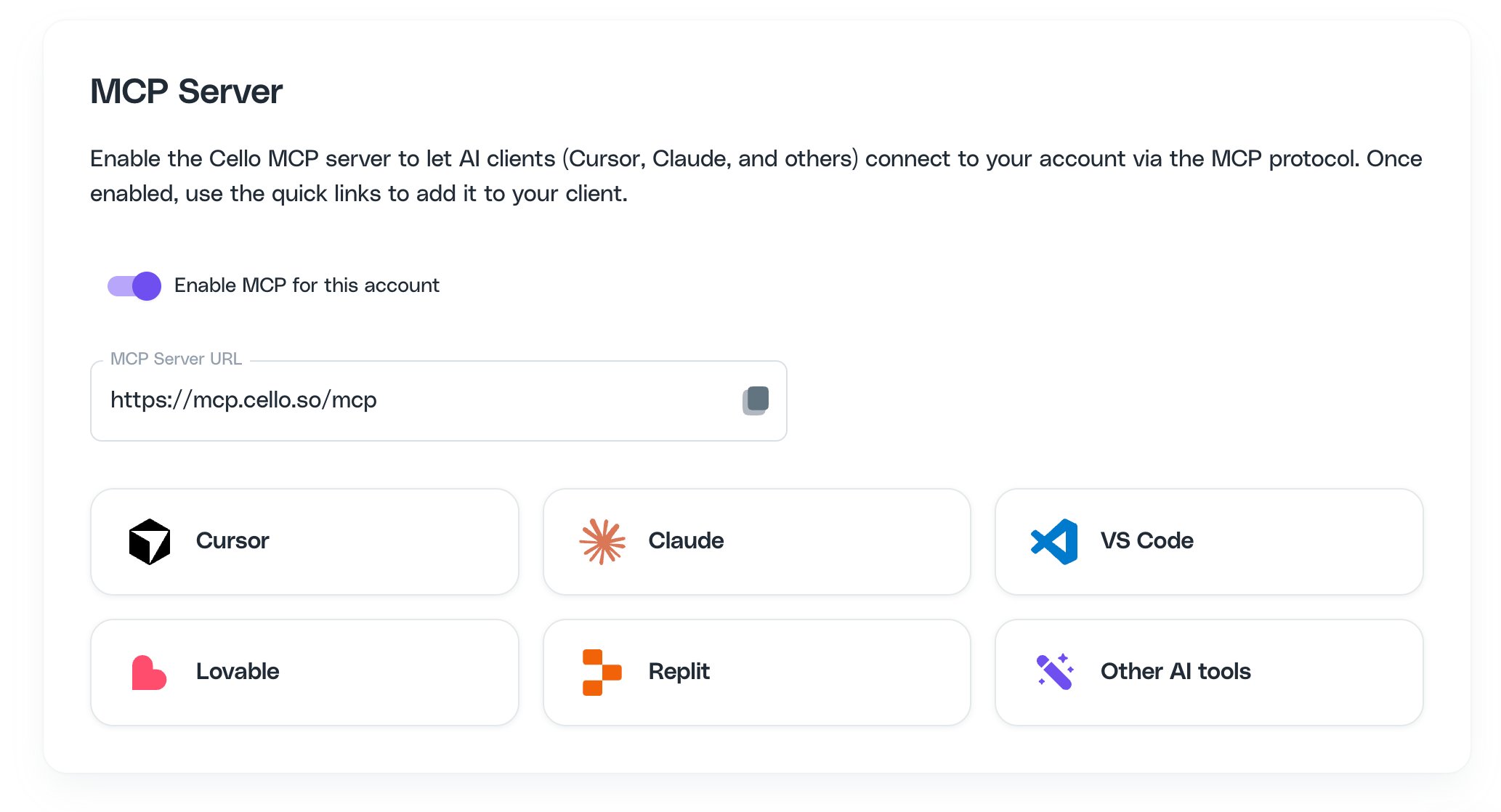
Make sure MCP is **enabled for your account** and grab your **MCP Server URL** first. The examples above use the Production URL; swap in your Sandbox URL (`https://mcp.sandbox.cello.so/mcp`) if connecting a test account.
 ## Claude
Connect Cello to the **Claude desktop or web app** as a custom connector. (For the Claude Code CLI, see [Claude Code](#claude-code) below.)
1. Go to **Settings → Connectors**
2. Click **Add custom connector**
3. Enter the following:
* **Name**: `Cello`
* **Remote MCP server URL**: `https://mcp.cello.so/mcp`
4. Click **Add**, then **Connect**.
## Claude
Connect Cello to the **Claude desktop or web app** as a custom connector. (For the Claude Code CLI, see [Claude Code](#claude-code) below.)
1. Go to **Settings → Connectors**
2. Click **Add custom connector**
3. Enter the following:
* **Name**: `Cello`
* **Remote MCP server URL**: `https://mcp.cello.so/mcp`
4. Click **Add**, then **Connect**.
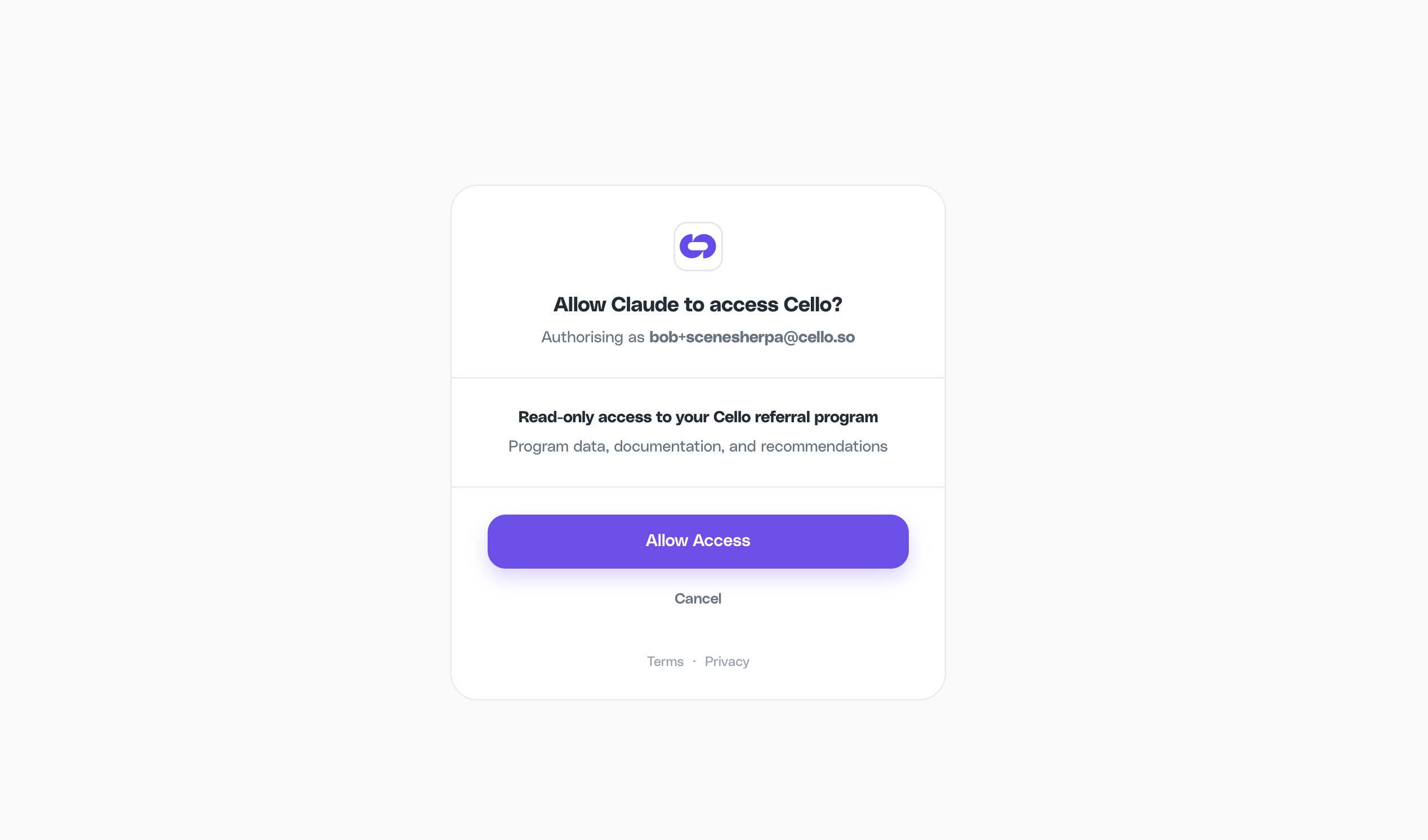
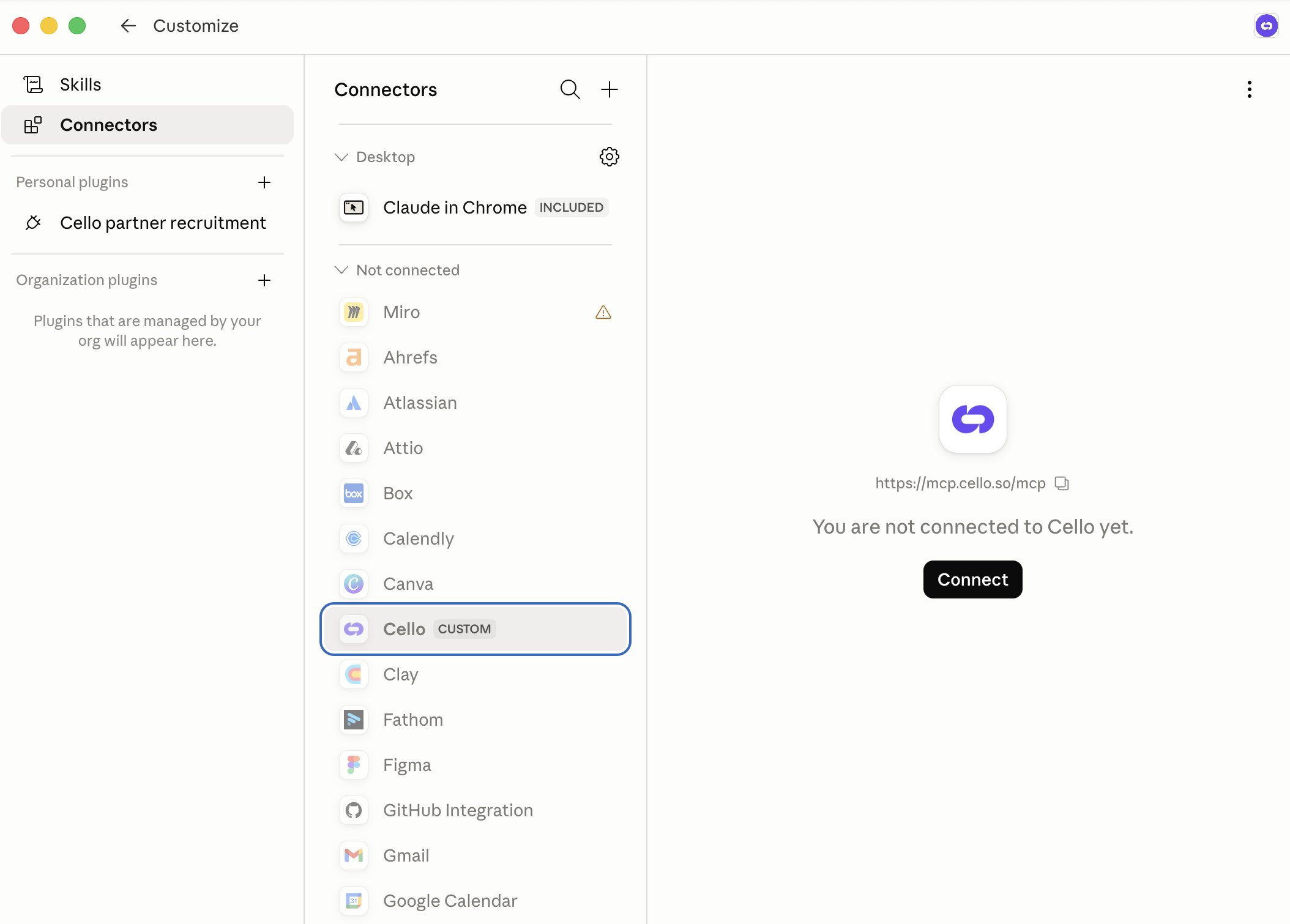 A browser window opens to authorize access to your Cello account.
 Once connected, the Cello tools appear in the chat and Claude uses them automatically.
On Team, Enterprise, and Edu plans, an admin may need to add Cello as an organization connector first via **Settings → Connectors → Organization plugins** before members can connect.
## Claude Code
Run the following in your terminal:
```bash theme={null}
claude mcp add --transport http Cello https://mcp.cello.so/mcp
```
Swap in the Sandbox URL (`https://mcp.sandbox.cello.so/mcp`) if you're connecting a test account.
Run `/mcp` inside Claude Code, select **Cello**, and choose **Authenticate**. A browser window opens for you to sign in to Cello and authorize access. Claude Code stores and refreshes the connection for you - there's no token to manage.
Run `/mcp` again. **Cello** should show as **connected** with its tools listed. Try a prompt like *"Use Cello to check my integration status."*
## Cursor
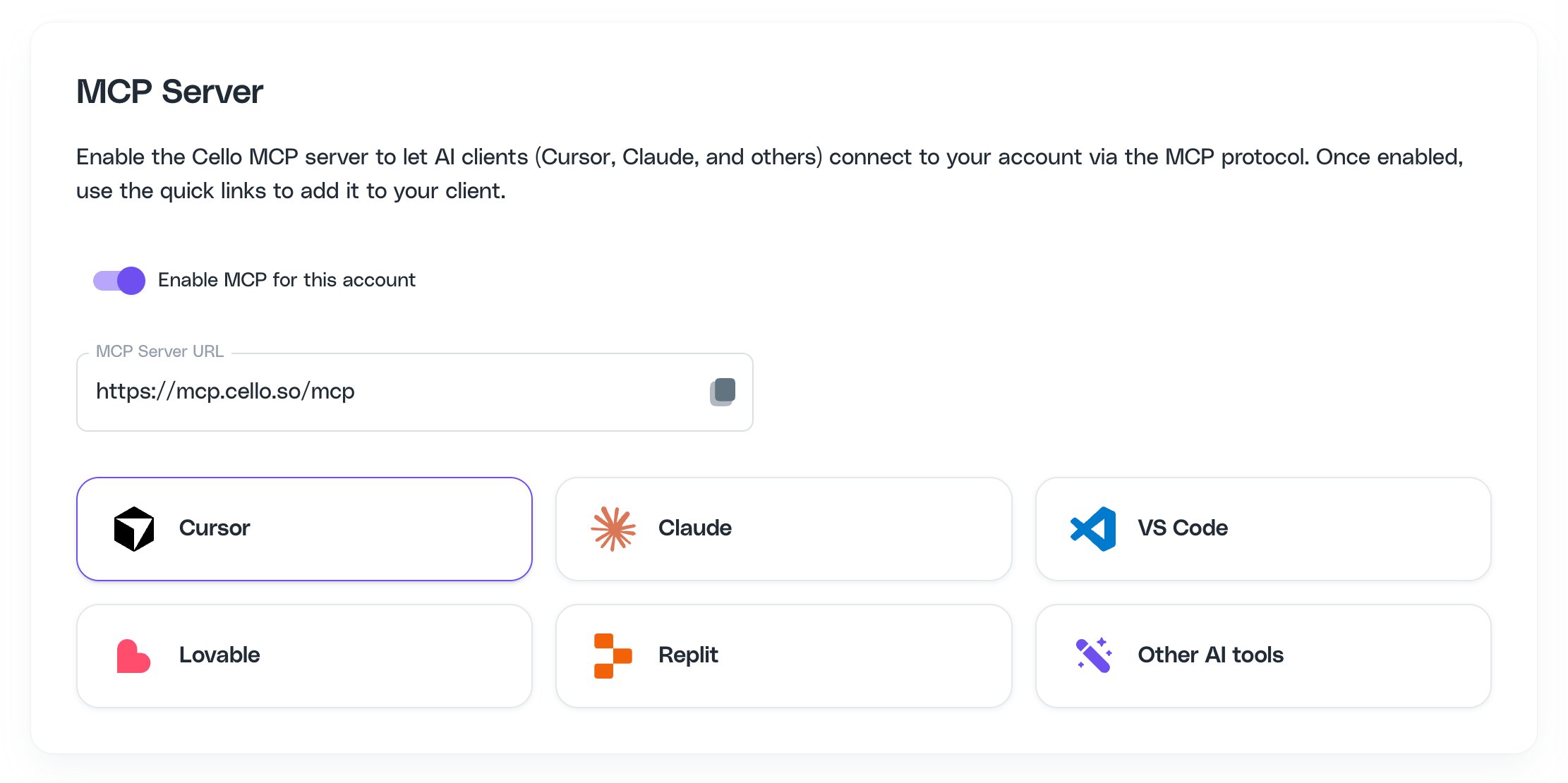
The quickest way is to click **Cursor** directly from the MCP Server page in the Cello Portal — it adds the server to Cursor automatically.
Or add it manually: go to **Cursor Settings → Tools & Integrations → MCP Servers → Add Server** and enter the server URL. When Cursor connects, it opens a browser window to sign in to Cello and authorize access.
Once connected, the Cello tools appear in the chat and Claude uses them automatically.
On Team, Enterprise, and Edu plans, an admin may need to add Cello as an organization connector first via **Settings → Connectors → Organization plugins** before members can connect.
## Claude Code
Run the following in your terminal:
```bash theme={null}
claude mcp add --transport http Cello https://mcp.cello.so/mcp
```
Swap in the Sandbox URL (`https://mcp.sandbox.cello.so/mcp`) if you're connecting a test account.
Run `/mcp` inside Claude Code, select **Cello**, and choose **Authenticate**. A browser window opens for you to sign in to Cello and authorize access. Claude Code stores and refreshes the connection for you - there's no token to manage.
Run `/mcp` again. **Cello** should show as **connected** with its tools listed. Try a prompt like *"Use Cello to check my integration status."*
## Cursor
The quickest way is to click **Cursor** directly from the MCP Server page in the Cello Portal — it adds the server to Cursor automatically.
Or add it manually: go to **Cursor Settings → Tools & Integrations → MCP Servers → Add Server** and enter the server URL. When Cursor connects, it opens a browser window to sign in to Cello and authorize access.
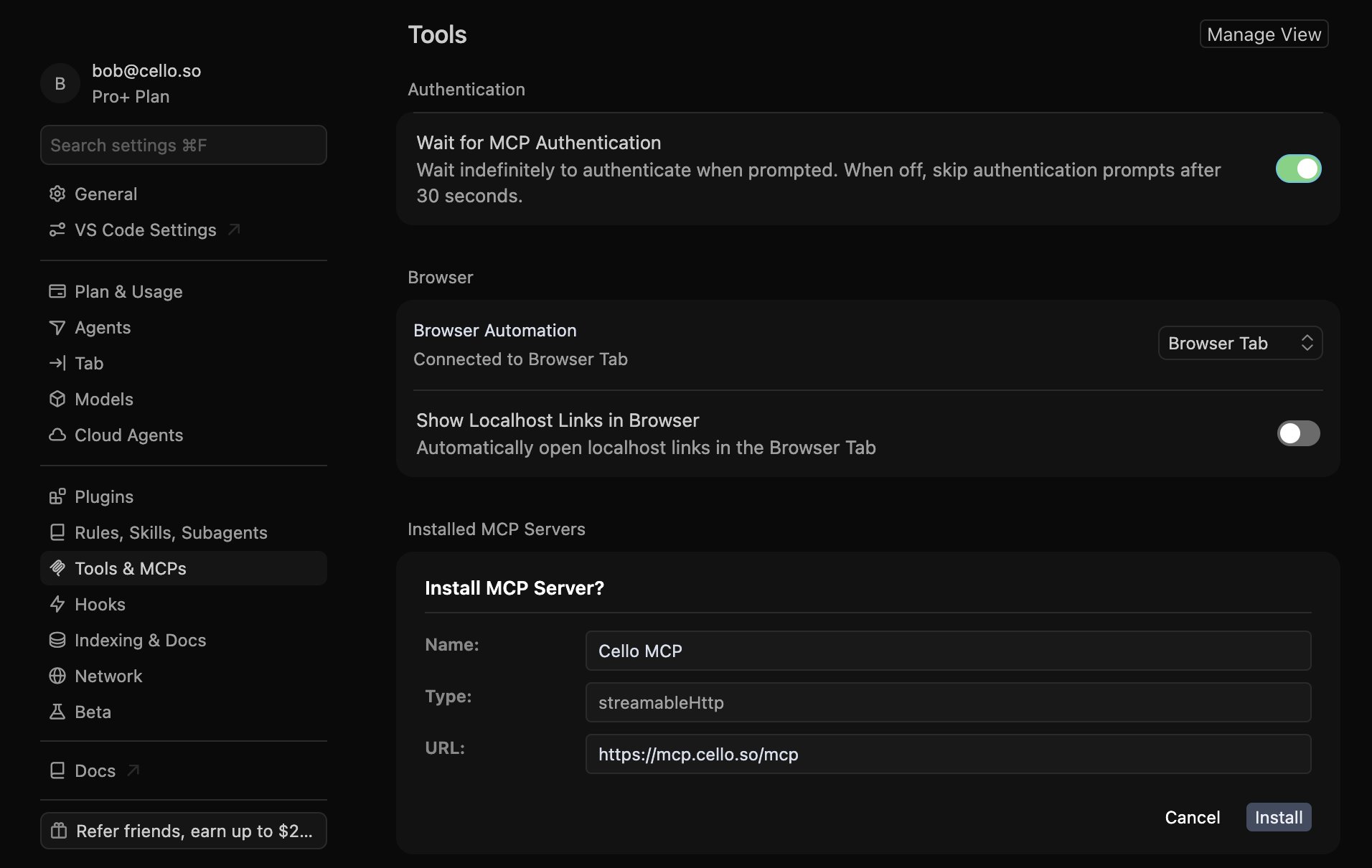 Or configure manually by editing `~/.cursor/config/mcp.json` (macOS/Linux) or `%USERPROFILE%\.cursor\config\mcp.json` (Windows):
```json theme={null}
{
"mcpServers": {
"Cello": {
"url": "https://mcp.cello.so/mcp"
}
}
}
```
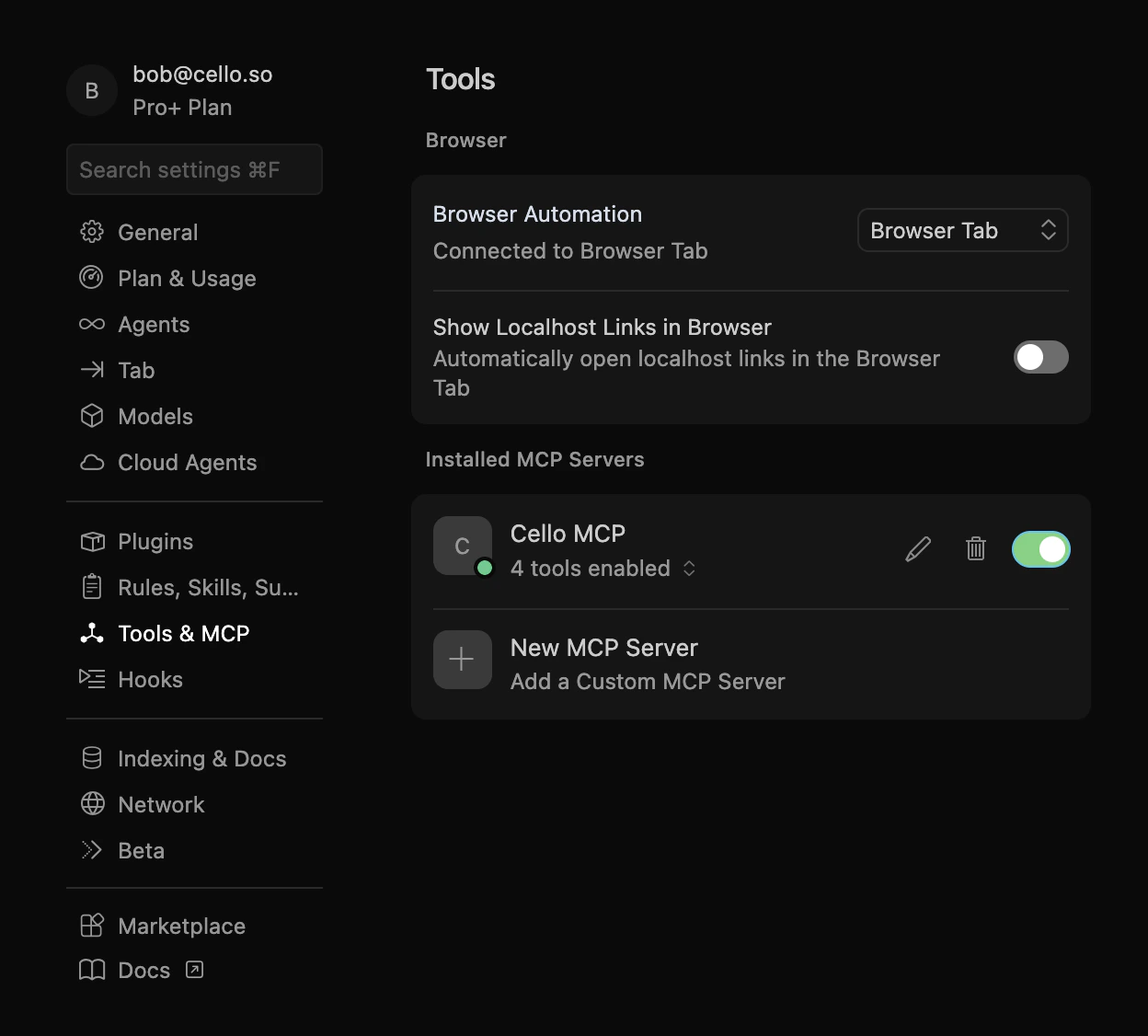
After adding the server, Cursor prompts you to sign in. Once authorized, you should see the Cello MCP server listed with the Cello tools enabled.
Or configure manually by editing `~/.cursor/config/mcp.json` (macOS/Linux) or `%USERPROFILE%\.cursor\config\mcp.json` (Windows):
```json theme={null}
{
"mcpServers": {
"Cello": {
"url": "https://mcp.cello.so/mcp"
}
}
}
```
After adding the server, Cursor prompts you to sign in. Once authorized, you should see the Cello MCP server listed with the Cello tools enabled.
 ## VS Code (Copilot)
Create or edit `.vscode/mcp.json` in your workspace (or use **MCP: Add Server** from the Command Palette):
```json theme={null}
{
"servers": {
"Cello": {
"type": "http",
"url": "https://mcp.cello.so/mcp"
}
}
}
```
When VS Code connects, it opens a browser window to sign in to Cello and authorize access.
## Windsurf
1. Go to **Settings → MCP**
2. Click **Add Server**
3. Enter the server URL: `https://mcp.cello.so/mcp`
4. Windsurf opens a browser window to sign in to Cello and authorize access.
## Lovable
Add the Cello MCP as a custom personal connector in Lovable:
1. In Lovable, go to **Settings → Connectors → Personal connectors**
2. Click **New MCP server**
3. Enter the following:
* **Server name**: `Cello`
* **Server URL**: `https://mcp.cello.so/mcp`
* **Authentication**: Select **OAuth**
4. Click **Add & authorize**. A browser window opens for you to sign in to Cello and authorize access.
The Cello connector appears in your list of personal connectors.
## VS Code (Copilot)
Create or edit `.vscode/mcp.json` in your workspace (or use **MCP: Add Server** from the Command Palette):
```json theme={null}
{
"servers": {
"Cello": {
"type": "http",
"url": "https://mcp.cello.so/mcp"
}
}
}
```
When VS Code connects, it opens a browser window to sign in to Cello and authorize access.
## Windsurf
1. Go to **Settings → MCP**
2. Click **Add Server**
3. Enter the server URL: `https://mcp.cello.so/mcp`
4. Windsurf opens a browser window to sign in to Cello and authorize access.
## Lovable
Add the Cello MCP as a custom personal connector in Lovable:
1. In Lovable, go to **Settings → Connectors → Personal connectors**
2. Click **New MCP server**
3. Enter the following:
* **Server name**: `Cello`
* **Server URL**: `https://mcp.cello.so/mcp`
* **Authentication**: Select **OAuth**
4. Click **Add & authorize**. A browser window opens for you to sign in to Cello and authorize access.
The Cello connector appears in your list of personal connectors.
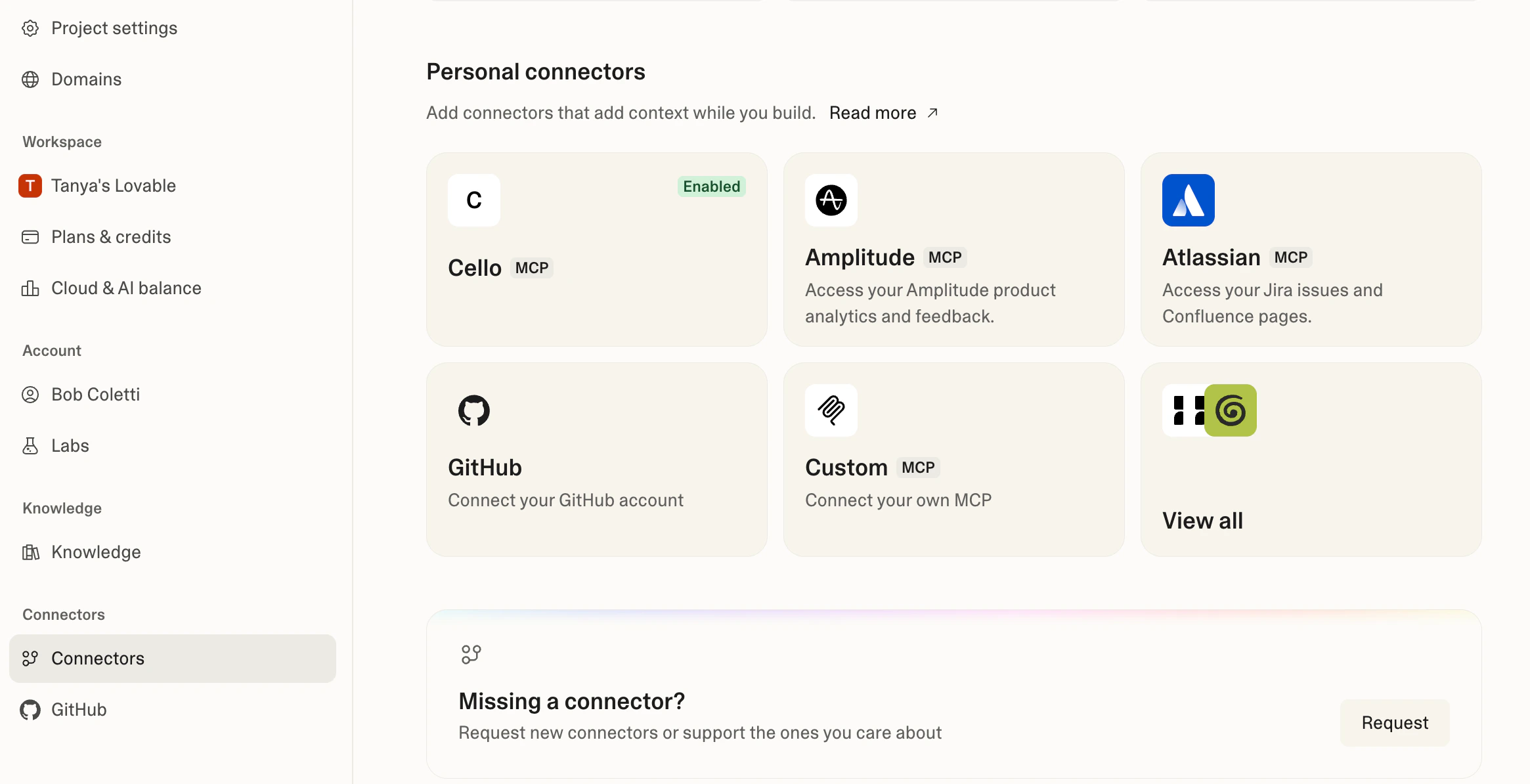 For a complete walkthrough of using the Cello MCP with Lovable to build a referral integration, see the [Cello + Lovable integration](/coding-apps/lovable-integration) guide. For more details on custom MCP servers in Lovable, see the [Lovable MCP documentation](https://docs.lovable.dev/integrations/mcp-servers).
## Other MCP clients
Any tool that supports MCP can connect to the Cello MCP server. Add the following to your client's MCP configuration:
* **Server URL**: `https://mcp.cello.so/mcp`
* **Authentication**: OAuth - sign in to Cello in the browser window your client opens
After adding the server, complete the browser sign-in to authorize access, then restart your application if your client requires it.
## Troubleshooting
| Issue | Solution |
| --------------------------------------------------- | --------------------------------------------------------------------------------------------------------------------------------------------------------------------------------------- |
| Connection fails | Re-run the authorization flow from your client to sign in to Cello again. Make sure you're signing in to the account that matches the server URL's environment (Production vs Sandbox). |
| Tools return authentication errors | Disconnect and reconnect the server to refresh authorization. Check that MCP is enabled for your account in the portal (**Integrations → MCP**). |
| You don't see the tools you expect | The available tools depend on your Cello role. If you expect developer or growth tools and don't see them, contact your Customer Success Manager. |
| `cello_get_integration_status` shows `notConnected` | Follow the relevant integration guide for the disconnected component. Use `search_cello` to find the setup docs. |
| Events show validation warnings | Use `cello_get_events` to inspect the payload and identify missing or malformed fields (ucc, productUserId, customerId). |
| Data or recommendations look out of date | Most data is live; config-based recommendations reflect the current setup, while CRM-derived recommendations may have a slight delay. |
## Need help?
If you get stuck, reach out to your Customer Success Manager or contact support at [support@cello.so](mailto:support@cello.so).
For a complete walkthrough of using the Cello MCP with Lovable to build a referral integration, see the [Cello + Lovable integration](/coding-apps/lovable-integration) guide. For more details on custom MCP servers in Lovable, see the [Lovable MCP documentation](https://docs.lovable.dev/integrations/mcp-servers).
## Other MCP clients
Any tool that supports MCP can connect to the Cello MCP server. Add the following to your client's MCP configuration:
* **Server URL**: `https://mcp.cello.so/mcp`
* **Authentication**: OAuth - sign in to Cello in the browser window your client opens
After adding the server, complete the browser sign-in to authorize access, then restart your application if your client requires it.
## Troubleshooting
| Issue | Solution |
| --------------------------------------------------- | --------------------------------------------------------------------------------------------------------------------------------------------------------------------------------------- |
| Connection fails | Re-run the authorization flow from your client to sign in to Cello again. Make sure you're signing in to the account that matches the server URL's environment (Production vs Sandbox). |
| Tools return authentication errors | Disconnect and reconnect the server to refresh authorization. Check that MCP is enabled for your account in the portal (**Integrations → MCP**). |
| You don't see the tools you expect | The available tools depend on your Cello role. If you expect developer or growth tools and don't see them, contact your Customer Success Manager. |
| `cello_get_integration_status` shows `notConnected` | Follow the relevant integration guide for the disconnected component. Use `search_cello` to find the setup docs. |
| Events show validation warnings | Use `cello_get_events` to inspect the payload and identify missing or malformed fields (ucc, productUserId, customerId). |
| Data or recommendations look out of date | Most data is live; config-based recommendations reflect the current setup, while CRM-derived recommendations may have a slight delay. |
## Need help?
If you get stuck, reach out to your Customer Success Manager or contact support at [support@cello.so](mailto:support@cello.so).