> ## Documentation Index
> Fetch the complete documentation index at: https://docs.cello.so/llms.txt
> Use this file to discover all available pages before exploring further.
# Setup Overview
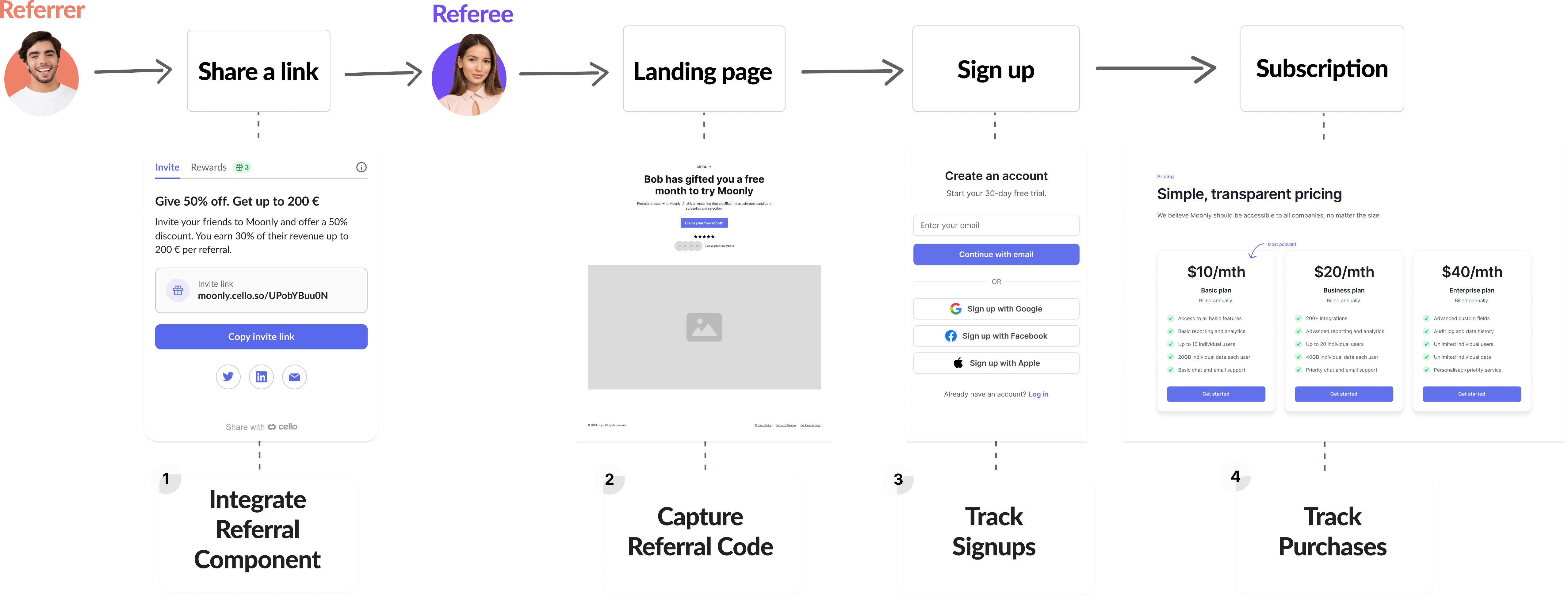
> Get started with Cello in 4 easy steps
 Using an AI coding tool? Connect the [Cello MCP server](/mcp/introduction) to your editor first. It gives your tool live access to Cello docs, integration health checks, and best-practice recommendations while you build. See [Connect your client](/mcp/connect) for setup.
## Setup Steps
If you did not find your integration guide, complete these steps to integrate Cello, regardless of your tech stack or payment gateway.
Effort: \~3-4 hours
Add referral functionality to your web application with Cello's embeddable Referral Component.
You can also integrate the Cello Referral Component into your mobile apps. Choose the appropriate SDK for your platform:
Effort: \~1-2 hours
Set up a [Referral Landing Page](/guides/user-experience/optimizing-landing-pages) and capture referral codes (`ucc`) when users click referral links. For Web signup flow, follow this guide:
Or choose the appropriate guide for your flow:
Effort: \~1 day
When users sign up or express interest in your product, attribute these events to their referrer for potential future rewards.
Choose your preferred method to send signup events to Cello:
Complete guide for tracking signup events
API reference for sending events
Effort: \~1 day
Complete the conversion tracking by sending purchase events to Cello when users make payments.
Choose your integration method based on your payment gateway:
Complete guide for tracking purchase events
Apply discounts to referred users when creating a subscription
}
href="/integrations/webhooks/stripe-webhook"
>
Stripe webhook integration for purchase events
}
href="/integrations/webhooks/chargebee-webhook"
>
Chargebee webhook integration for purchase events
## Integration Guides
Effort: \~1-2 days
Ready-to-use webhook integrations for Stripe and Chargebee provide the **fastest path** to track referral conversions automatically.
These guides are **optimized for the typical freemium scenario with Stripe or Chargebee**.
Use one of these guides if you:
* Create a Stripe or Chargebee customer on signup
* Use the Stripe or Chargebee webhook to send Cello referral conversion events
Using an AI coding tool? Connect the [Cello MCP server](/mcp/introduction) to your editor first. It gives your tool live access to Cello docs, integration health checks, and best-practice recommendations while you build. See [Connect your client](/mcp/connect) for setup.
## Setup Steps
If you did not find your integration guide, complete these steps to integrate Cello, regardless of your tech stack or payment gateway.
Effort: \~3-4 hours
Add referral functionality to your web application with Cello's embeddable Referral Component.
You can also integrate the Cello Referral Component into your mobile apps. Choose the appropriate SDK for your platform:
Effort: \~1-2 hours
Set up a [Referral Landing Page](/guides/user-experience/optimizing-landing-pages) and capture referral codes (`ucc`) when users click referral links. For Web signup flow, follow this guide:
Or choose the appropriate guide for your flow:
Effort: \~1 day
When users sign up or express interest in your product, attribute these events to their referrer for potential future rewards.
Choose your preferred method to send signup events to Cello:
Complete guide for tracking signup events
API reference for sending events
Effort: \~1 day
Complete the conversion tracking by sending purchase events to Cello when users make payments.
Choose your integration method based on your payment gateway:
Complete guide for tracking purchase events
Apply discounts to referred users when creating a subscription
}
href="/integrations/webhooks/stripe-webhook"
>
Stripe webhook integration for purchase events
}
href="/integrations/webhooks/chargebee-webhook"
>
Chargebee webhook integration for purchase events
## Integration Guides
Effort: \~1-2 days
Ready-to-use webhook integrations for Stripe and Chargebee provide the **fastest path** to track referral conversions automatically.
These guides are **optimized for the typical freemium scenario with Stripe or Chargebee**.
Use one of these guides if you:
* Create a Stripe or Chargebee customer on signup
* Use the Stripe or Chargebee webhook to send Cello referral conversion events