> ## Documentation Index
> Fetch the complete documentation index at: https://docs.cello.so/llms.txt
> Use this file to discover all available pages before exploring further.
# New User Discounts
> Offering discounts or rewards to referees is a powerful strategy for improving signup conversion
# Why discounts matter
The most effective referral programs offer value to **both sides**:
* **Referrer rewards**: Cash for successful referrals
* **Referee discounts**: Immediate value like percentage discounts or free months
This symmetric approach maximizes participation because referrers feel good about sharing something valuable, while referees receive immediate benefit for trying your product. According to referral program best practices, dual rewards can increase referral conversion rates by 30-50% compared to single-sided programs.
# How to add discounts in Cello
Applying discounts is orchestrated in your subscription platforms. Please refer to our [integration docs](/attribution/apply-discounts) for guidance specific to your platform.
Before implementing the technical integration, you need to configure discount information in your Cello campaign. This allows the discount details to be displayed in the Referral Component offer and terms, and Landing page for new users, even though the actual discount application happens in your subscription platform.
## Adding discount information to your campaign
1. **Navigate to Campaign Settings**: Go to [Campaign settings in Cello Portal](https://portal.cello.so/setup/campaigns)
2. **Configure Discount Details**: Add discount information by specifying:
* **Discount percentage**: The percentage off the regular price (e.g., 50%)
* **Duration in months**: How long the discount applies (e.g., 6 months)
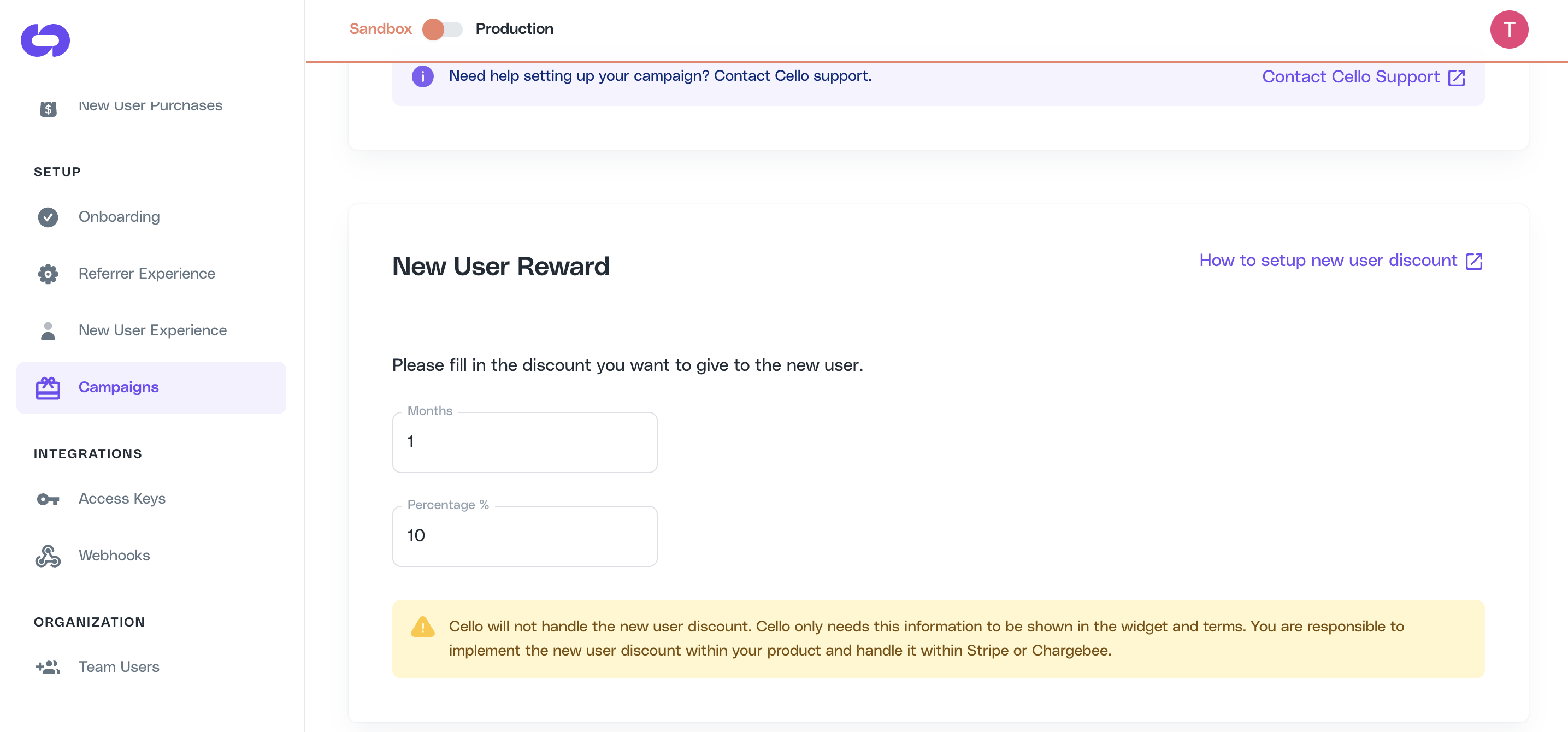
3. **Save Configuration**: The discount information is now stored in your campaign configuration and can be retrieved via the `getCampaignConfig()` method from AttirbutionJS to display on your landing page.
**Important**: This configuration is for display purposes only. The actual discount application must be implemented in your subscription platform (Stripe, Chargebee, etc.) as described in the integration sections below.
# Displaying discounts to new users
Once you've configured discounts in Cello, you can display this information to referred users through two main approaches: the automated New User Banner or custom landing page personalization.
## Option 1: New User Banner (No-code solution)
Recommended for quick setup
The **New User Banner** is an automated banner that appears only to visitors who arrive through referral links. It requires minimal technical setup and handles personalization automatically.
### How it works
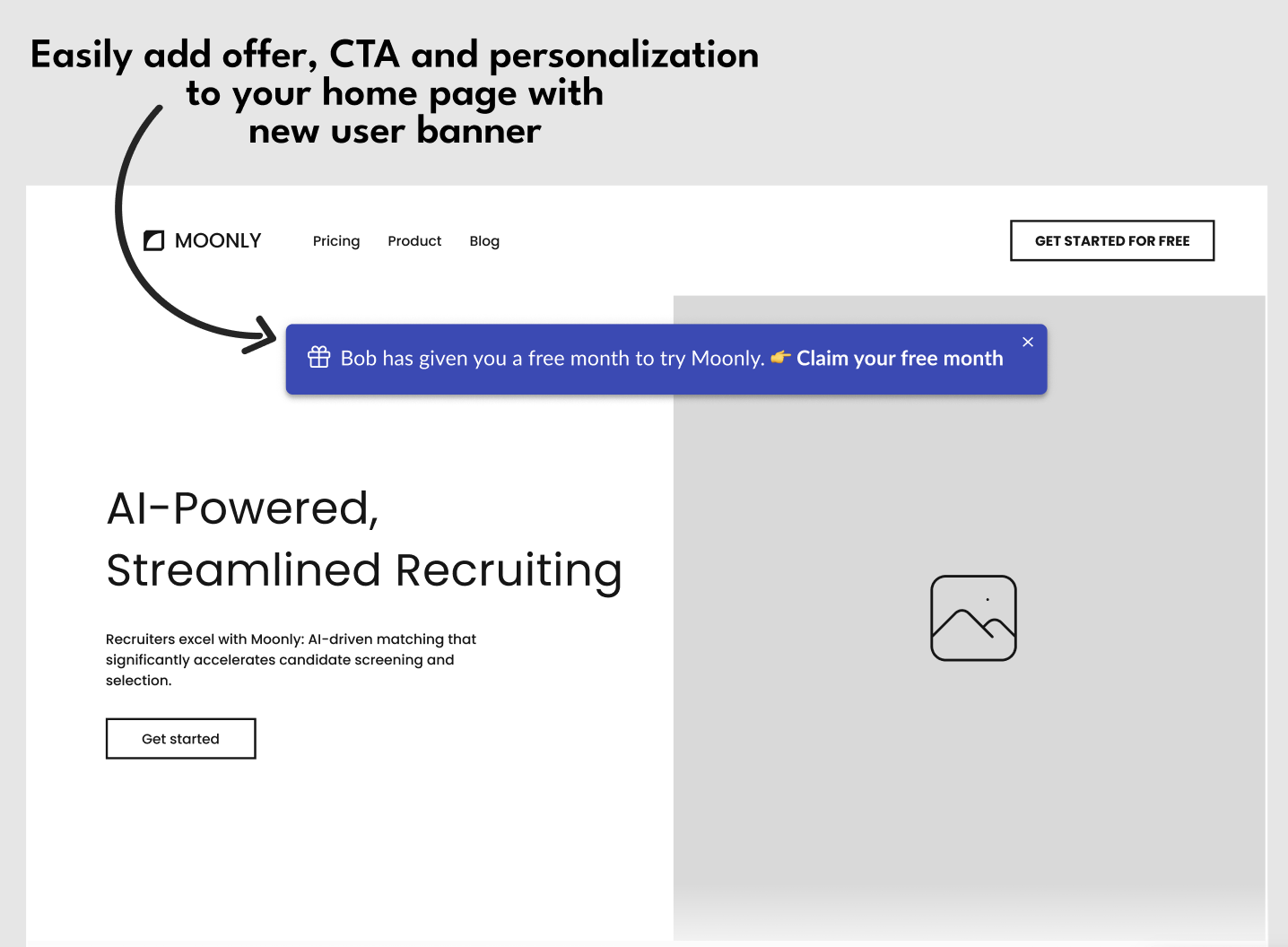
The banner automatically displays:
* Referrer's name (e.g., "Bob has invited you...")
* Discount information from your campaign config
* Personalized call-to-action buttons
* Special messaging for referred users only
### Setup steps
Add the [Cello Attribution script](/sdk/client-side/embedded-script-tag) to your landing page:
```html theme={null}
```
1. Go to [New User Experience setup → Personalization tab](https://portal.cello.so/setup/new-user-experience)
2. Turn on the "New User Banner" option
3. In the Portal you can toggle the banner on/off and adjust any styling options that are exposed there
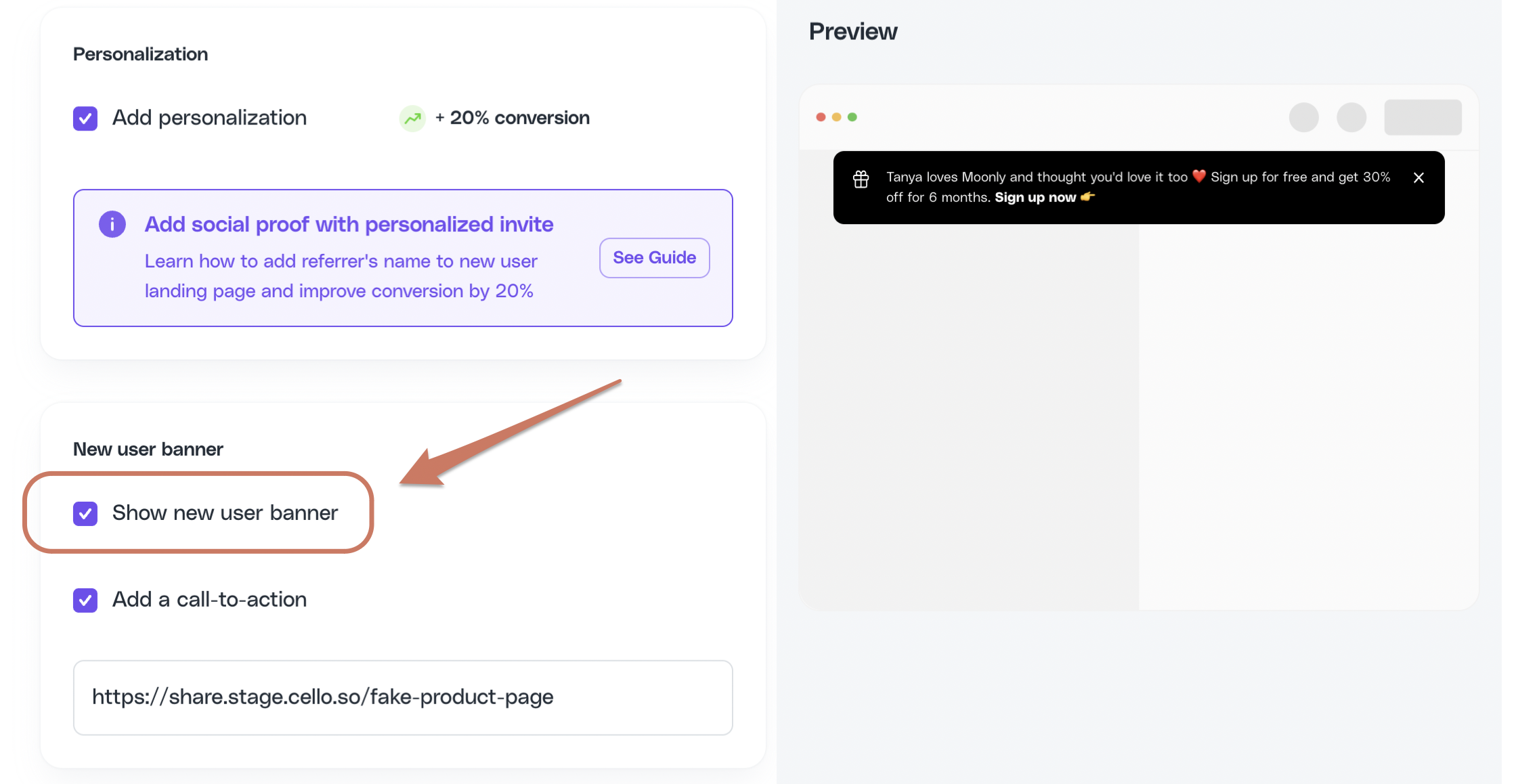
The Portal controls whether the banner is shown and surfaces visual styling. The banner **copy** (message text, CTA wording) is managed by Cello and is not editable self-serve - contact your CSM or [support@cello.so](mailto:support@cello.so) to request copy changes. The same applies to widget onboarding text, offer descriptions, announcements, and email body copy. See [Texts and copy](/guides/user-experience/configuring-referral-component#customize-text-and-copy).
Ensure personalization is enabled in your user experience configuration and you are sending the name of the referrer in the productUserDetails when booting the widget, so referrer name appear in the banner.
## Option 2: Custom Landing Page Personalization
Recommended for full control
For complete control over the user experience, implement custom personalization using Attribution JS methods.
**Client-side vs. server-side rendering:** `getCampaignConfig()` from the Attribution JS SDK is the recommended way to retrieve and display discount info - it runs in the browser with no extra backend round-trip. If your app is **server-side rendered** (e.g., PHP, Next.js SSR) and you need discount details available before the page loads, you can use the [New User Reward API](/api-reference/new-users/get-reward) from your server instead. For most apps, the JS approach is simpler.
### Setup steps
First, add this code before any Attribution calls to handle asynchronous loading:
```javascript theme={null}
// Queue function to handle script loading
window.CelloAttribution=window.CelloAttribution||function(t,...o){if("getReferral"===t)throw new Error("getReferral is not supported in this context. Use getUcc instead.");let e,n;const i=new Promise((t,o)=>{e=t,n=o});return window.CelloAttributionCmd=window.CelloAttributionCmd||[],window.CelloAttributionCmd.push({command:t,args:o,resolve:e,reject:n}),i}
```
Use Attribution JS methods to retrieve referral and campaign configuration data:
* `window.CelloAttribution("getUcc")`
* `window.CelloAttribution("getReferrerName")`
* `window.CelloAttribution("getCampaignConfig")`
Display the discount inline on your landing page (e.g., a banner or callout). The values come from the campaign configuration retrieved in the previous step. The `getCampaignConfig()` method returns discount data in this format:
```javascript theme={null}
// Example campaign config response
{
newUserDiscountPercentage: 0.25, // 25% discount (decimal format)
newUserDiscountMonth: 3 // For 3 months
}
```
## FAQ
### Can I add different discounts for different campaigns?
Cello supports multiple campaigns with different discount structures, allowing you to offer varied incentives based on the referral source or campaign type.