> ## Documentation Index
> Fetch the complete documentation index at: https://docs.cello.so/llms.txt
> Use this file to discover all available pages before exploring further.
# Manage Partners
> Cello allows you to manage your partners and affiliates to provide them with a full portal experience
Cello allows you to manage your partners and affiliates, providing them with a full portal experience for accessing their affiliate links, tracking referral progress, and receiving rewards for successful referrals. Inviting partners takes only a few clicks.
## Inviting New Partners to Your Program
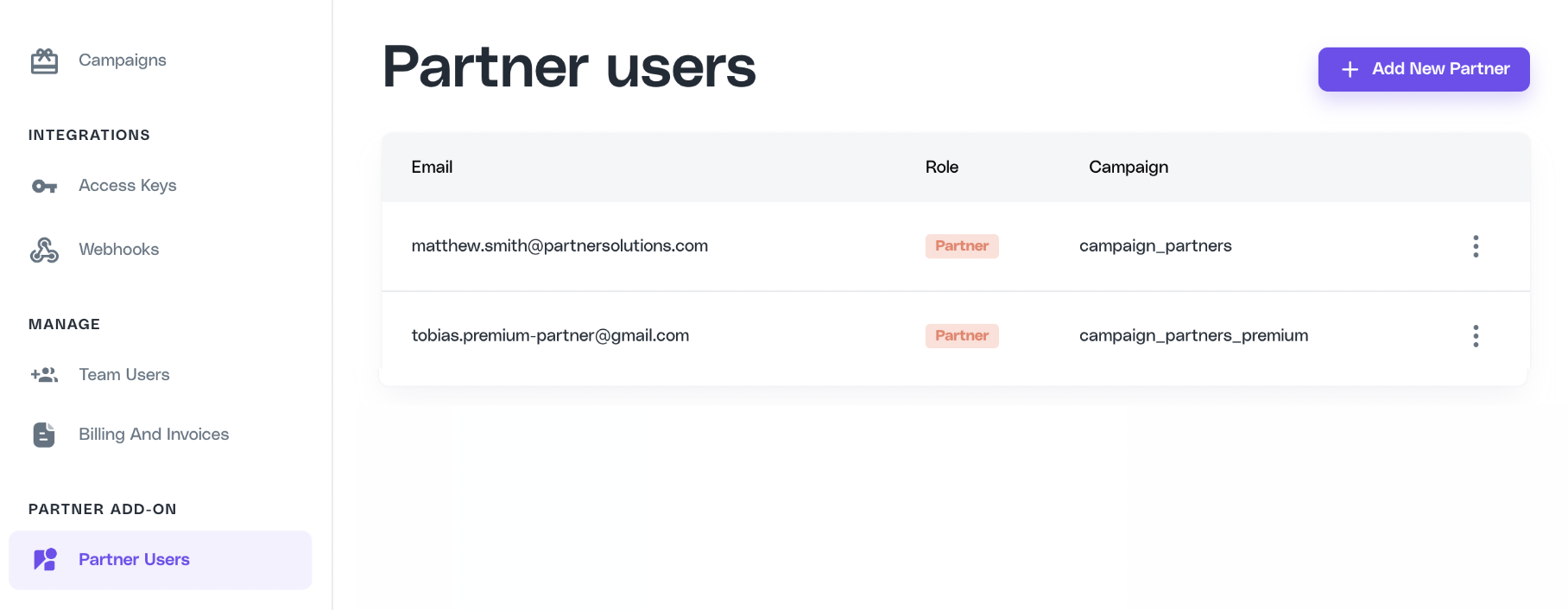
1. Navigate to the **Partner Users** page in the Cello Portal and click **Add New Partner** in the upper right.
If you don't see the **Partner Users** or **Partner Resources** pages, check that the **Sandbox / Production** toggle in the upper left of the portal is set to **Production**. Partner pages are only visible in Production mode. If you've switched to Production and the pages are still missing, contact Cello support to have the necessary permissions applied to your account.
 2. Enter the **email** and **campaign** you want to assign to the partner user. **Product User ID** is optional and should be added if you want to update an existing user to partner status.
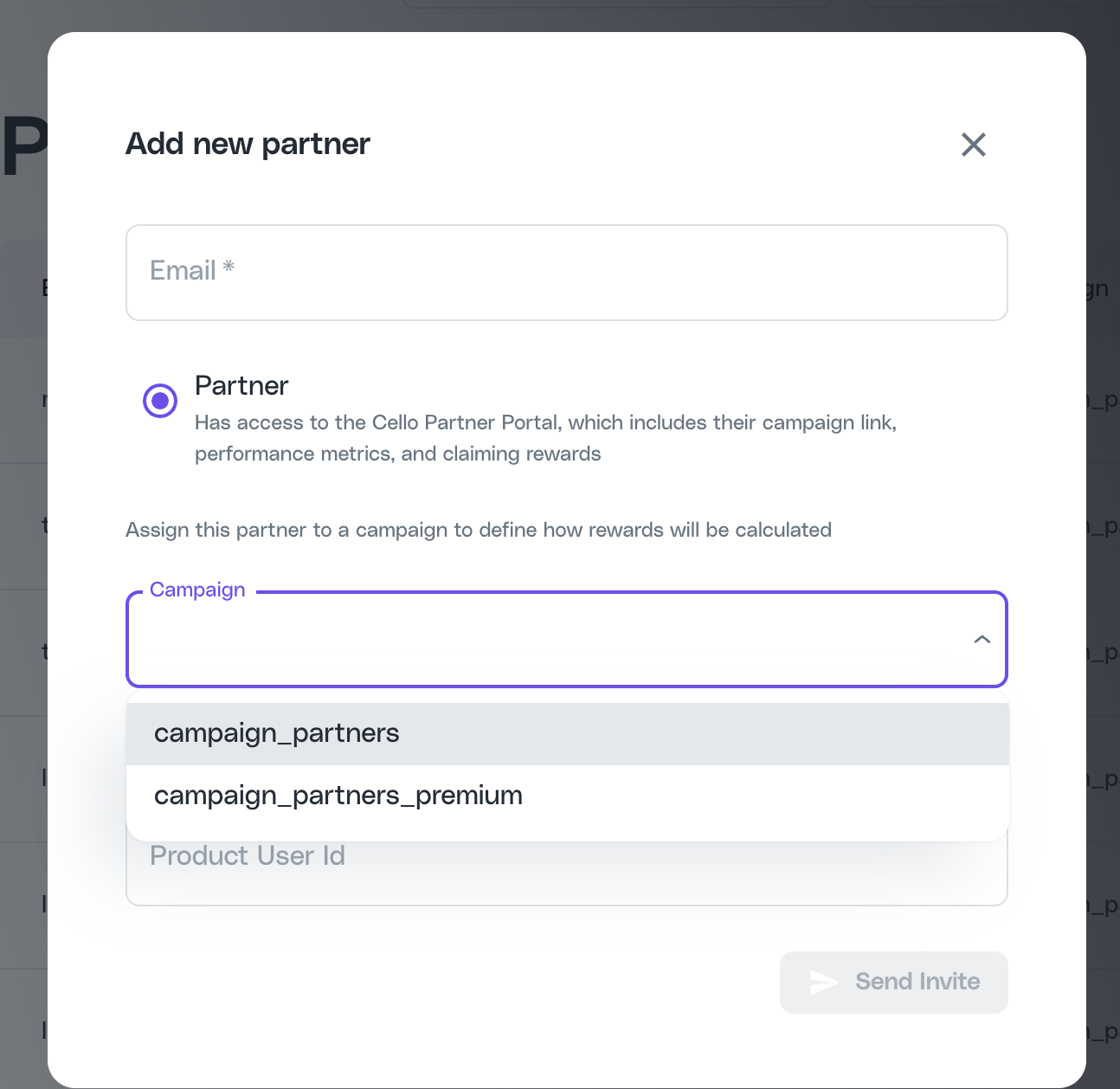 **What is the Product User ID?** It is the unique identifier your product already assigns to that user - the same ID you pass as `productUserId` when generating the JWT token and booting the Referral Component. You can look up an existing user's ID in the **Referrer Id** column of the Referrals dashboard in the Cello Portal.
**When to provide it:** always fill in the Product User ID when the person you're inviting as a partner is already a user in your product. This ensures their existing referral code (`ucc`) is retained through the transition, so their referral link stays the same.
If you do not specify the Product User ID, Cello automatically creates a new identifier, and the user will end up with two separate referral links: one inside your product and one in the Cello partner portal, with split referral tracking.
3. Click **Send Invite**.
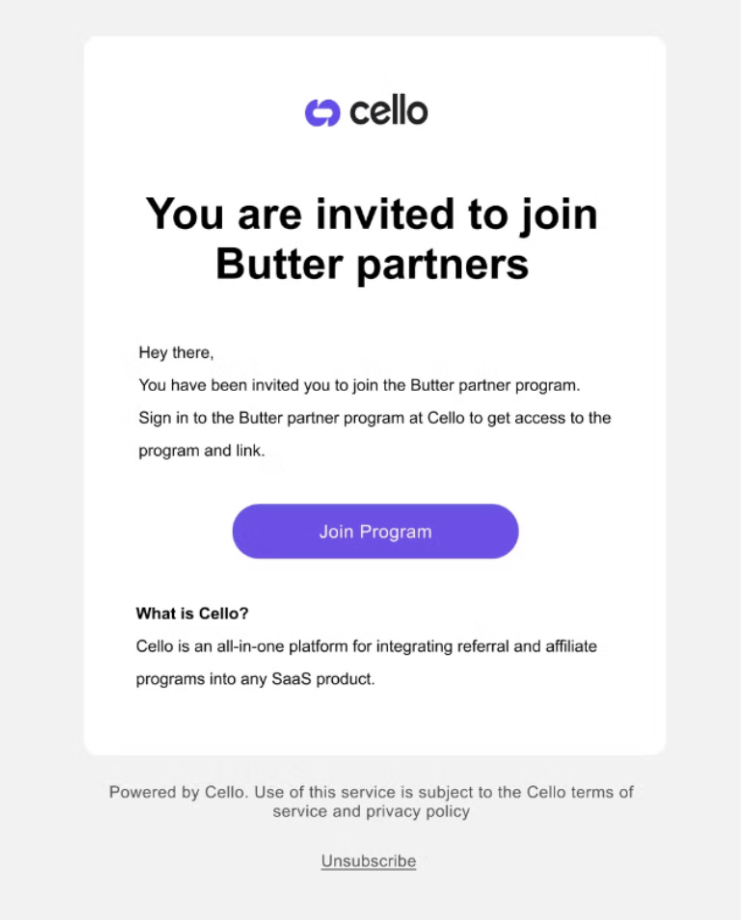
4. The partner user will receive a branded email invitation with instructions to register.
5. From this email, they can click a link to register quickly, either using **sign up with Google** or by providing an email and password. (Note: If a user signs up using email, they can later use Google to sign in with the same email address.)
**What is the Product User ID?** It is the unique identifier your product already assigns to that user - the same ID you pass as `productUserId` when generating the JWT token and booting the Referral Component. You can look up an existing user's ID in the **Referrer Id** column of the Referrals dashboard in the Cello Portal.
**When to provide it:** always fill in the Product User ID when the person you're inviting as a partner is already a user in your product. This ensures their existing referral code (`ucc`) is retained through the transition, so their referral link stays the same.
If you do not specify the Product User ID, Cello automatically creates a new identifier, and the user will end up with two separate referral links: one inside your product and one in the Cello partner portal, with split referral tracking.
3. Click **Send Invite**.
4. The partner user will receive a branded email invitation with instructions to register.
5. From this email, they can click a link to register quickly, either using **sign up with Google** or by providing an email and password. (Note: If a user signs up using email, they can later use Google to sign in with the same email address.)