> ## Documentation Index
> Fetch the complete documentation index at: https://docs.cello.so/llms.txt
> Use this file to discover all available pages before exploring further.
# Stripe Reports
> With Stripe, you can manually export and import them into Cello. This feature is especially handy when you need to conduct some tests before enabling full automation
With Stripe, you can manually export and import them into Cello. This feature is especially handy when you need to conduct some tests before enabling full automation.
## Generating a Stripe Customer Export
After you've enriched the Stripe Customer with the right metadata, you're ready to export it as a .csv file. To do so:
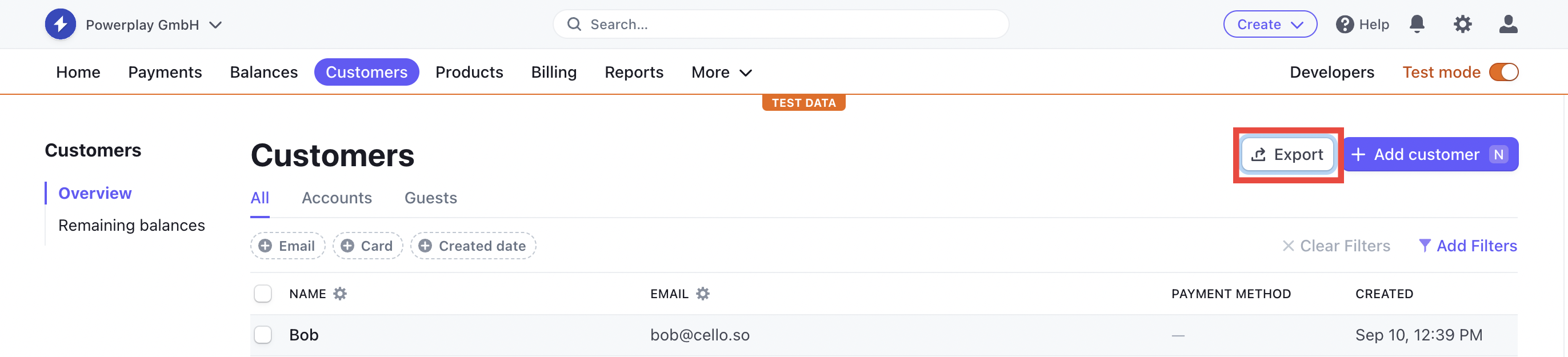 1. Navigate to **Customers** > **Overview**, and then click **Export**.
2. Specify the details for the export:
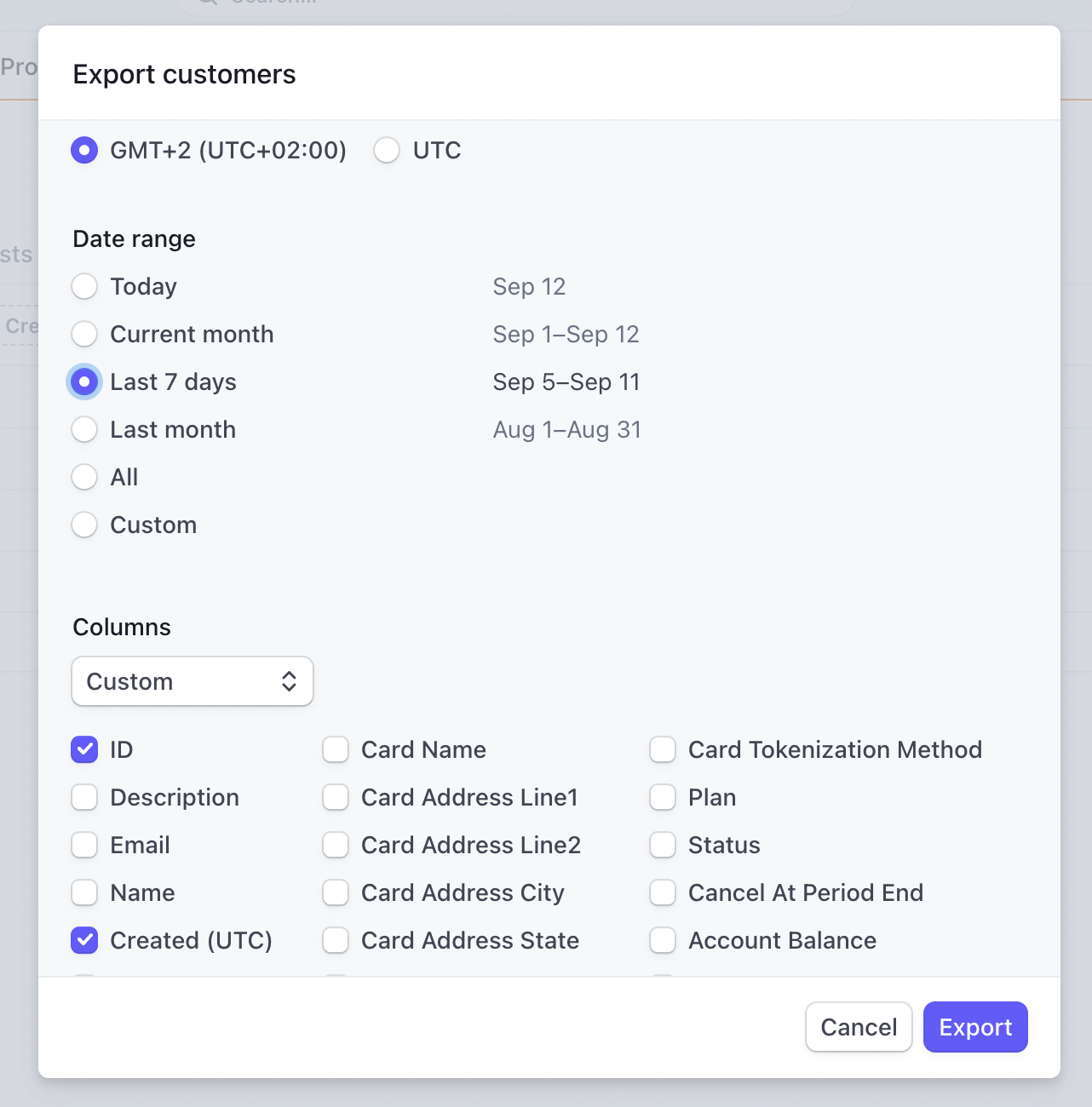
* **Date range**: If you're submitting reports weekly or even more frequently, you can always opt for **Last 7 days**. Cello is designed to avoid importing duplicates.
* **Columns**: You only need to include **ID** and **Created (UTC)**. If `cello_ucc` has been added to the Customer metadata, it will always be added as a column in the exported file.
1. Navigate to **Customers** > **Overview**, and then click **Export**.
2. Specify the details for the export:
* **Date range**: If you're submitting reports weekly or even more frequently, you can always opt for **Last 7 days**. Cello is designed to avoid importing duplicates.
* **Columns**: You only need to include **ID** and **Created (UTC)**. If `cello_ucc` has been added to the Customer metadata, it will always be added as a column in the exported file.
 The exported .csv file for a Stripe Customer Export might look like this:
 ## Generating a Stripe Payment Export
Stripe allows you to export payments as a .csv file. To do so:
## Generating a Stripe Payment Export
Stripe allows you to export payments as a .csv file. To do so:
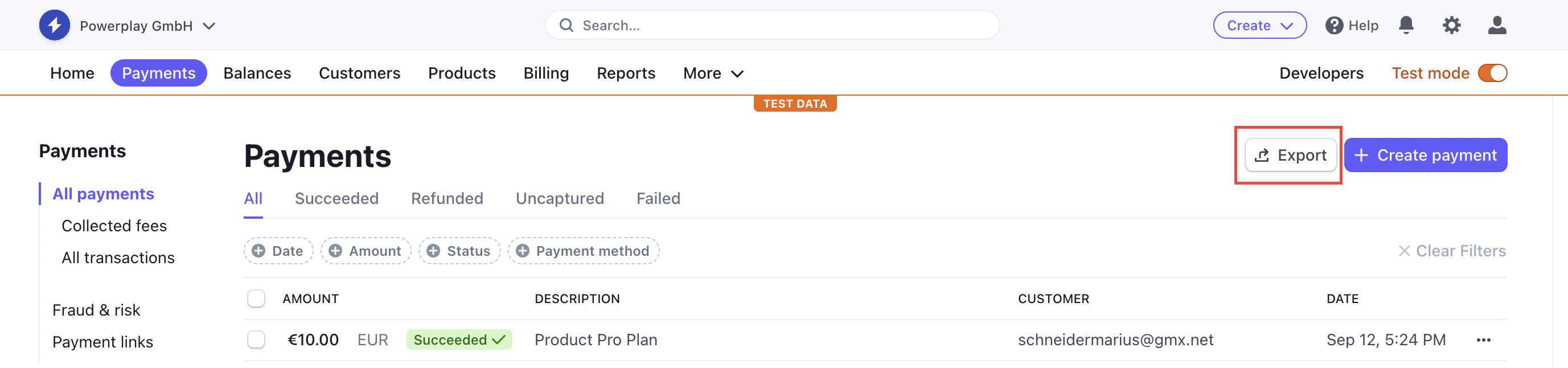 1. Go to **Payments** > **All Payments**, choose **Successful**, and then click **Export**.
2. Specify the details for the export:
1. **Date range**: Just as with the customer export, you can opt for **Last 7 days** if you're submitting reports frequently. Cello will prevent duplicate imports.
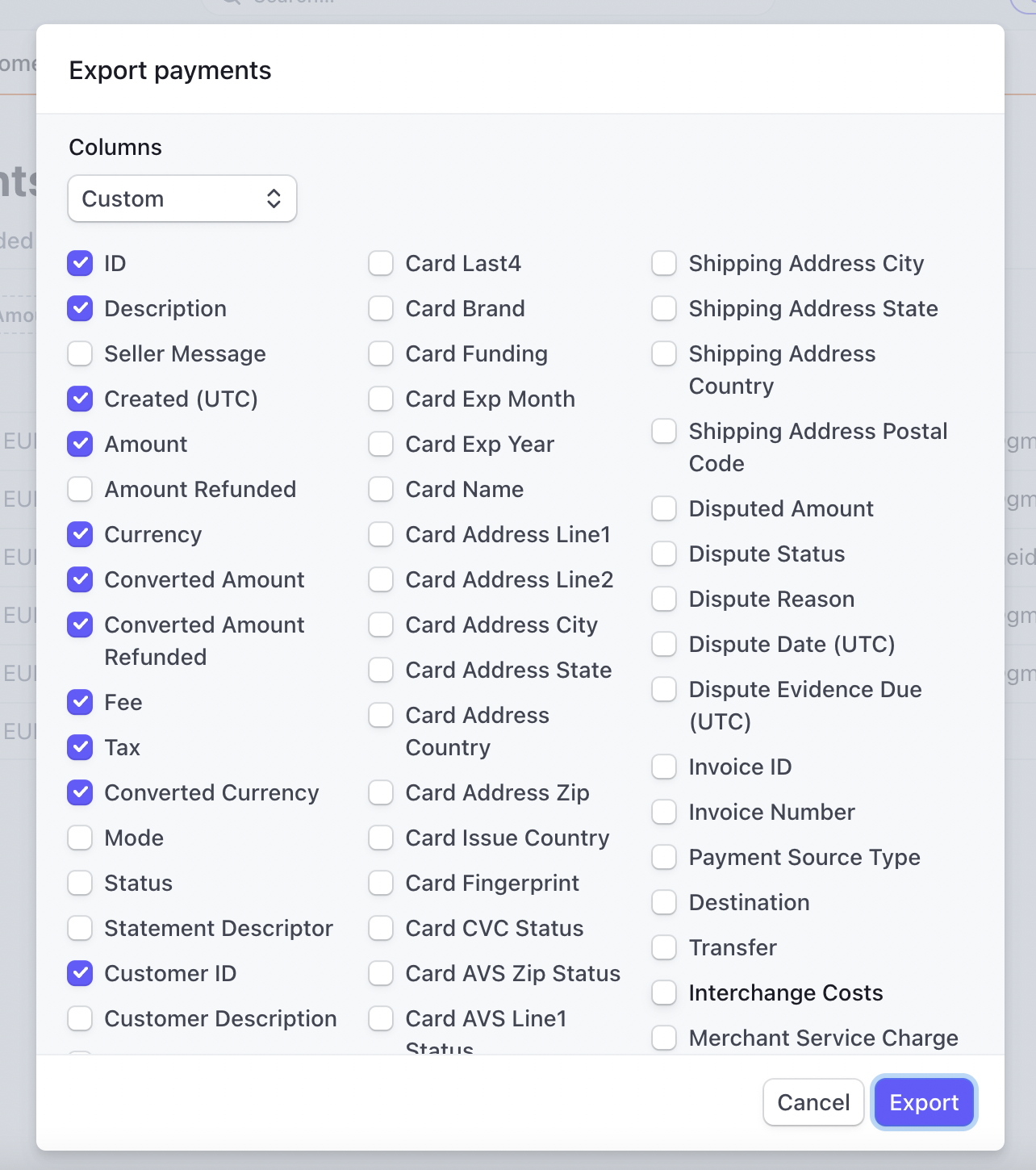
1. **Columns**: The data we suggest including in the report are: **ID**, **Description**, **Created (UTC)**, **Amount**, **Currency**, **Converted Amount**, **Fee**, **Tax**, **Converted Currency**, **Customer ID**.
1. Go to **Payments** > **All Payments**, choose **Successful**, and then click **Export**.
2. Specify the details for the export:
1. **Date range**: Just as with the customer export, you can opt for **Last 7 days** if you're submitting reports frequently. Cello will prevent duplicate imports.
1. **Columns**: The data we suggest including in the report are: **ID**, **Description**, **Created (UTC)**, **Amount**, **Currency**, **Converted Amount**, **Fee**, **Tax**, **Converted Currency**, **Customer ID**.