> ## Documentation Index
> Fetch the complete documentation index at: https://docs.cello.so/llms.txt
> Use this file to discover all available pages before exploring further.
# HubSpot Reports
> This guide will walk you through exporting attribution and event reports from HubSpot
This guide will walk you through exporting attribution and event reports from HubSpot. You'll create a view in HubSpot and export it as a .csv file. However, keep in mind that steps may vary based on your specific HubSpot setup and its objects and properties.
For more detailed instructions, please refer to the [HubSpot documentation](https://knowledge.hubspot.com/) and specifically [Create and export a view](https://knowledge.hubspot.com/crm-setup/create-customize-and-manage-your-saved-views).
## Creating and Exporting a View
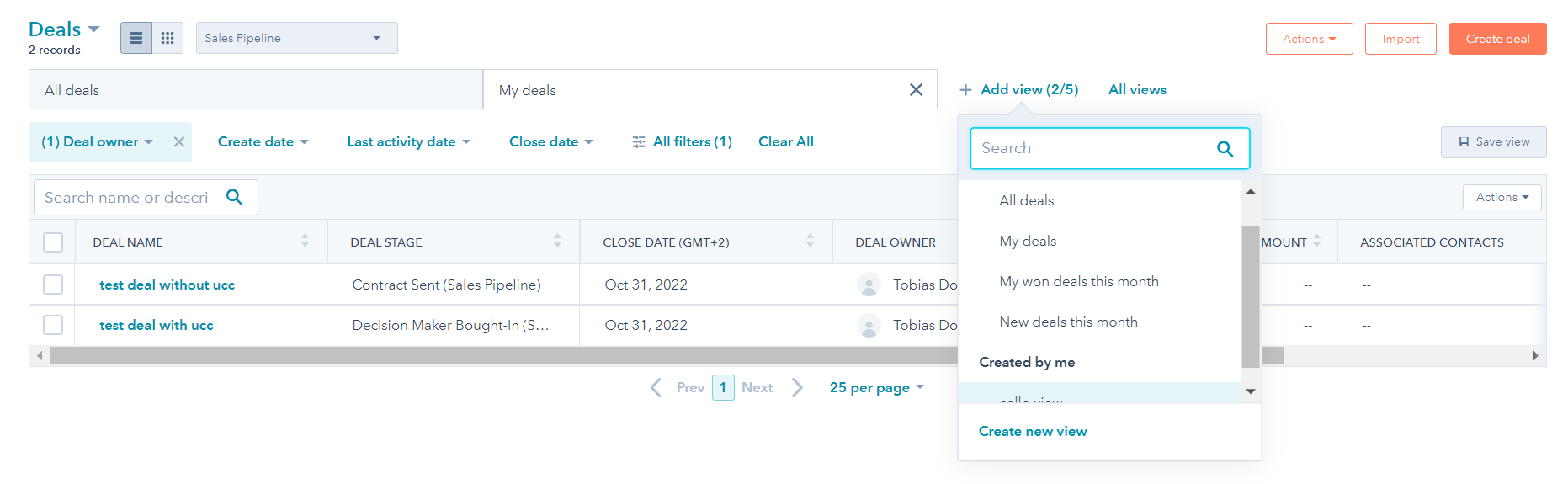
1. Navigate to your deals pipeline in HubSpot and create a new view.
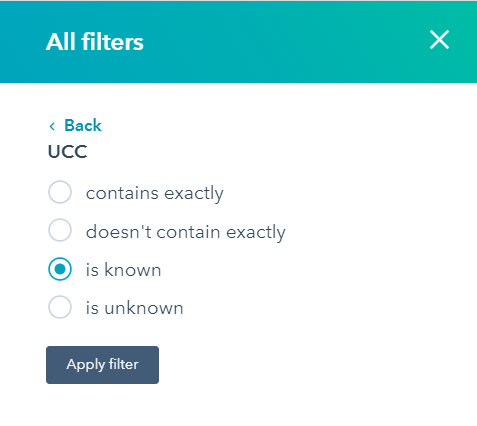
 2. In the view you just created, click **Apply Filter** to show only deals where Cello's referral code (`ucc`) is known.
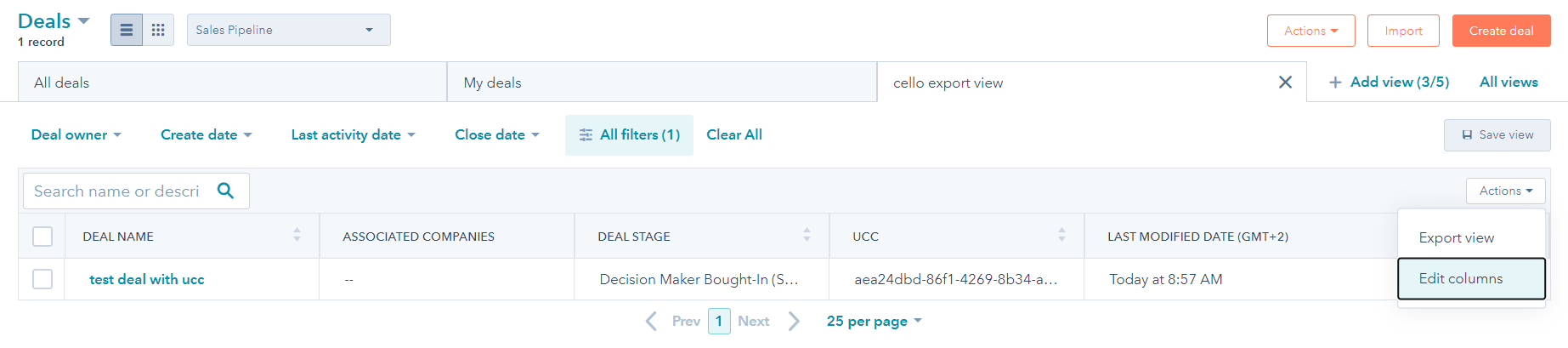
 3. Select the required columns for the **Attribution & Event report**. Make sure that the exported records can be linked with the records in the **Purchases report** via a common field, either the `Referred Account ID` or Cello's referral code (`ucc`). The Attribution & Event report should, at the very least, contain the following fields:
* `Referred Account ID` (which equates to the `Internal Account ID`)
* `Cello's referral code (`ucc`)`
* `Custom Event`
* `Create Date`
* `Last Modification Date`
3. Select the required columns for the **Attribution & Event report**. Make sure that the exported records can be linked with the records in the **Purchases report** via a common field, either the `Referred Account ID` or Cello's referral code (`ucc`). The Attribution & Event report should, at the very least, contain the following fields:
* `Referred Account ID` (which equates to the `Internal Account ID`)
* `Cello's referral code (`ucc`)`
* `Custom Event`
* `Create Date`
* `Last Modification Date`
 4. Save the view.
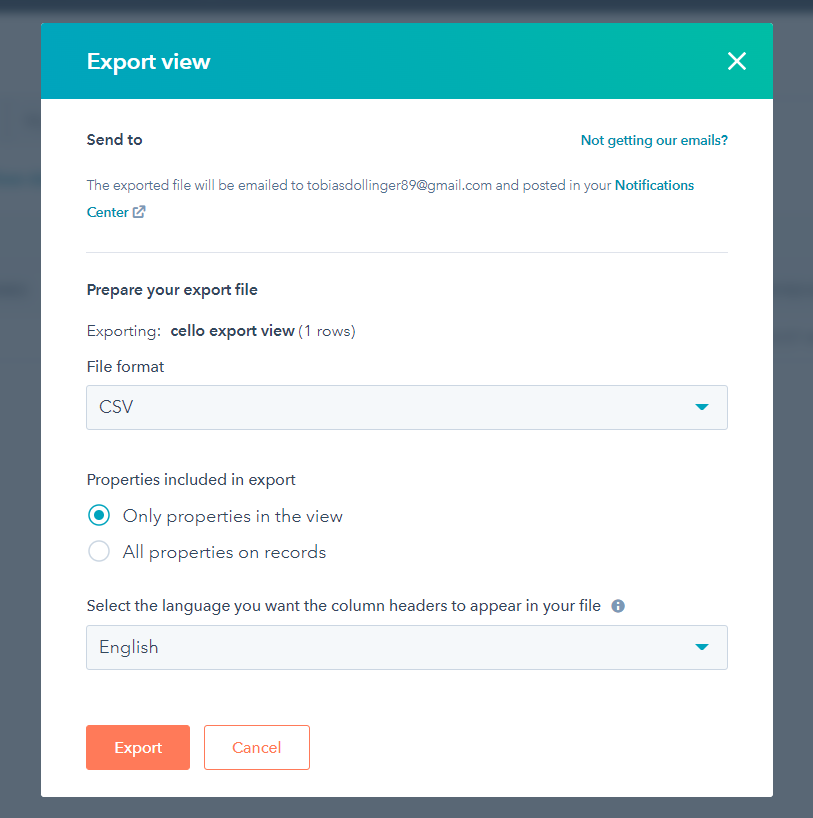
5. Finally, click **Export** to export the view to a .csv file.
4. Save the view.
5. Finally, click **Export** to export the view to a .csv file.
 With these steps, you should be able to successfully create and export your custom HubSpot reports for use with Cello.