> ## Documentation Index
> Fetch the complete documentation index at: https://docs.cello.so/llms.txt
> Use this file to discover all available pages before exploring further.
# Typeform Forms
> Ingest Cello's referral code (ucc) into HubSpot using Typeform forms
This page guides you through the required steps to ingest **Cello's referral code (`ucc`) into HubSpot using Typeform forms**.
## Create a form with a hidden ucc field in Typeform
Create a new form in Typeform
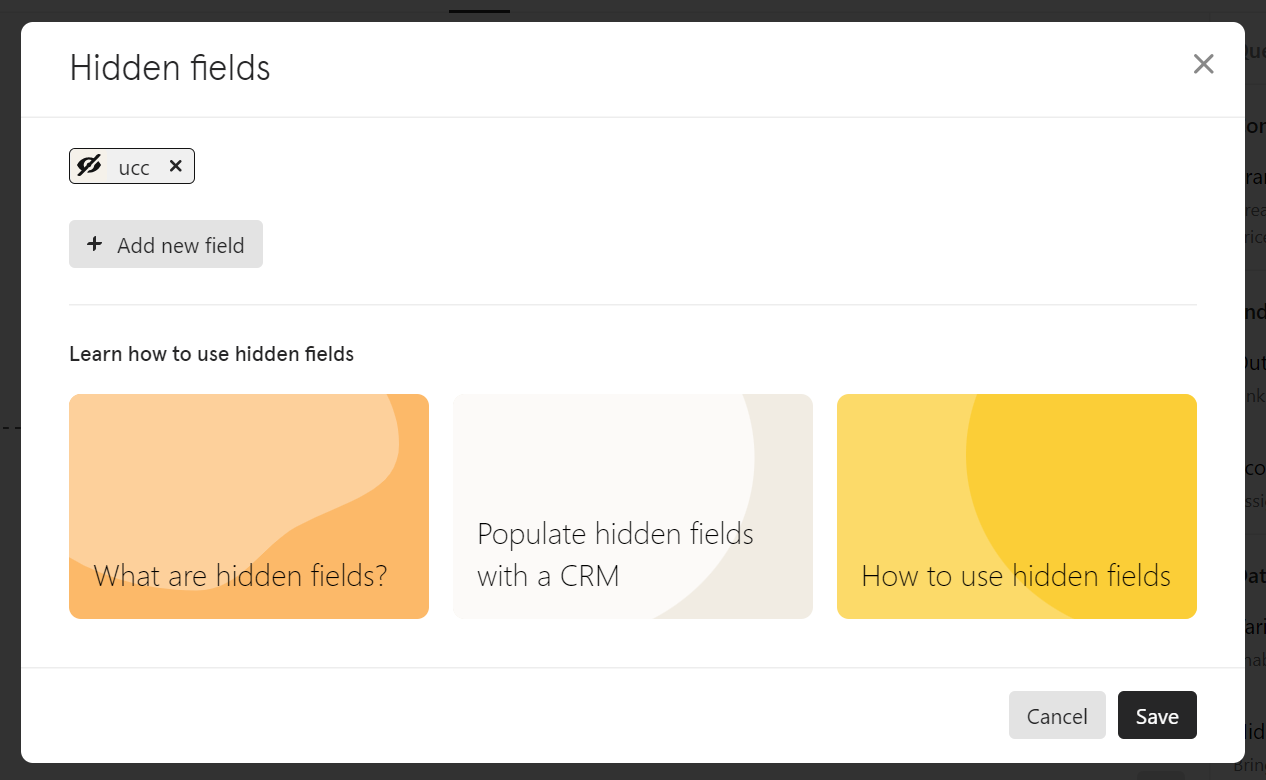
On the initial question in your form, go to **Hidden Fields** via **Logic → Hidden Fields** on the panel on the right
Add a new field named `ucc` and click Save
 ## Setup of Sync from Typeform to HubSpot
Navigate to the **Connect** Section in the header of Typeform and connect HubSpot
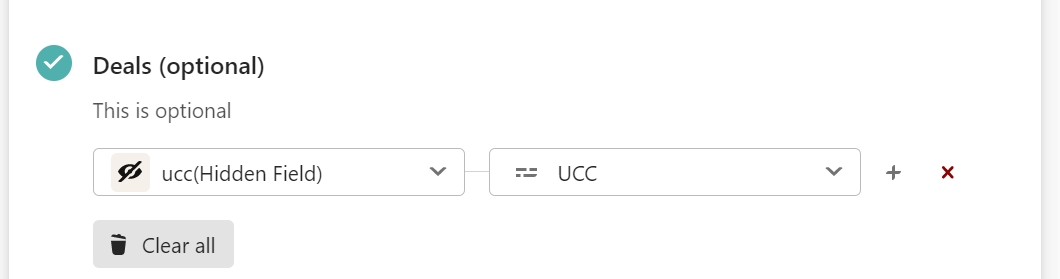
After the authorization is done, you can select the HubSpot object to which you want to sync the `ucc`. In the below example the `ucc` is synced to a deal in HubSpot.
You can also sync the `ucc` to multiple objects at the same time: contact, company and deals.
If you sync the `ucc` to a deal, you have to specify in which pipeline at which stage the deals should be created
After finalizing the setup of the integration, save the settings and run a short test run
## Setup of Sync from Typeform to HubSpot
Navigate to the **Connect** Section in the header of Typeform and connect HubSpot
After the authorization is done, you can select the HubSpot object to which you want to sync the `ucc`. In the below example the `ucc` is synced to a deal in HubSpot.
You can also sync the `ucc` to multiple objects at the same time: contact, company and deals.
If you sync the `ucc` to a deal, you have to specify in which pipeline at which stage the deals should be created
After finalizing the setup of the integration, save the settings and run a short test run
 ## Test the created Typeform and HubSpot integration
Open the created Typeform
Add either `?ucc=12341234` or `&ucc=12341234` to the link depending on if there is already a "?" present in the link
## Test the created Typeform and HubSpot integration
Open the created Typeform
Add either `?ucc=12341234` or `&ucc=12341234` to the link depending on if there is already a "?" present in the link
 Submit the Typeform
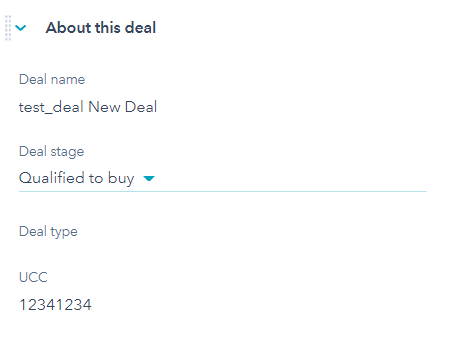
Open HubSpot and check that the contact, company or deal was created and the `ucc` was synced correctly
Submit the Typeform
Open HubSpot and check that the contact, company or deal was created and the `ucc` was synced correctly
 ## Further hints
You can also embed a Calendly in Typeform to allow customers to schedule e.g. a demo from the Typeform. Documentation can be found [here](https://www.typeform.com/connect/calendly/).
## Further hints
You can also embed a Calendly in Typeform to allow customers to schedule e.g. a demo from the Typeform. Documentation can be found [here](https://www.typeform.com/connect/calendly/).